Lab WIQ03 — Work IQ MCP protocol
Use the 10 unified tools in the Work IQ MCP server to read, create, and manage Microsoft 365 entities. This lab covers connecting with MCP Inspector and using ask, getSchema, fetch, and create_entity.
▶ One-line summary — The Work IQ MCP server compresses hundreds of Microsoft 365 operations into just 10 general-purpose tools. Because the structure expands by adding resource paths, not tools, the tool surface never grows. In this lab, you will connect with MCP Inspector and practice ask, getSchema, fetch, and create_entity.
Level 300 · Duration about 90 minutes · Badge WorkIQ-Expert
Translated article — This article is based on Lab WIQ03 from Microsoft official Copilot Developer Camp.
The Work IQ MCP (Model Context Protocol) server exposes Microsoft 365 intelligence capabilities to AI agents through a unified set of general-purpose tools. Instead of creating separate integrations for each Microsoft 365 API, an agent connects to Work IQ once and accesses mail, calendars, files, people, chats, and sites — all through a consistent toolset that operates on resource paths.
Prerequisites
- Complete Lab WIQ01 — Work IQ setup and CLI
- Complete Entra ID application registration for programmatic access (WIQ01 Exercise 4)
- Credentials from the app registration: TENANT_ID, CLIENT_ID, CLIENT_SECRET
- Local installation of MCP Inspector
- A Microsoft 365 tenant with at least one mail and calendar item
Scenario
You are a developer building intelligent agents that work with Microsoft 365 data. Instead of hardcoding API calls for every resource, you need to understand how to discover schemas at runtime, fetch data, and create entities through the unified toolset of the Work IQ MCP server.
Lab goals
- Understand the design principles of the Work IQ MCP integration server
- Ask natural-language questions with the
asktool - Discover runtime schemas with the
getSchematool - Retrieve inbox mail with the
fetchtool - Create entities, such as calendar events, with the
create_entitytool - Authenticate to Work IQ MCP with the Entra ID app registered in WIQ01
Exercise 1: Understand the Work IQ MCP model
The Work IQ MCP server compresses hundreds of Microsoft 365 operations into 10 general-purpose tools, organized into three categories: Entity Tools / Copilot Tools / Schema Tools.
Design principles
① Fewer tools, more paths — Instead of exposing a separate tool for every Microsoft 365 entity type, Work IQ provides general-purpose verbs (fetch, create_entity, update_entity, delete_entity, do_action, call_function) that operate with resource paths. New workloads add paths, not tools, so the tool surface does not grow.
② Introspection over enumeration — Instead of loading thousands of type definitions into context up front, agents request schemas at runtime with getSchema. This enables dynamic discovery and adaptation.
③ Security by design — Four broad OAuth permissions control the overall capabilities, while fine-grained access control is enforced by path, method, and tenant policy. Permission inheritance, DLP, and regulatory compliance are built into every layer.
Tool categories
| Category | Tool | Description |
|---|---|---|
| Entity Tools | fetch |
Read entities from Microsoft 365 resources |
create_entity |
Create a new entity in a collection | |
update_entity |
Modify an existing entity | |
delete_entity |
Delete an entity | |
do_action |
Perform a side-effecting action (send, copy, move) | |
call_function |
Calculate derived data (schedule, delta, search) | |
| Copilot Tools | ask |
Query Microsoft 365 Copilot with natural-language questions |
list_agents |
Discover available Work IQ agents | |
| Schema Tools | get_schema |
Retrieve the OpenAPI schema for a specific operation |
search_paths |
Search available resource paths |
All tools operate with resource paths.
| Resource path | Purpose |
|---|---|
/me/messages |
Read mail |
/me/events |
Read calendar events |
/me/chats/{id}/messages |
Read Teams chat messages |
/me/sendMail |
Send mail (action) |
The power of this model is that the same fetch tool works with any supported path, such as /me/messages, /me/events, or /users/{id}/files. Agents only need to deal with general-purpose tools and paths, not individual APIs.
Exercise 2: Set up and authenticate MCP Inspector
MCP Inspector is a web-based tool that can test MCP servers and call tools interactively.
Step 1: Open MCP Inspector
Prerequisite — MCP Inspector requires Node.js v22.7.5 or later. Check with node --version before continuing.
-
Run the following in a terminal.
npx @modelcontextprotocol/inspector - MCP Inspector is downloaded and started. Open the URL shown in the terminal, usually http://localhost:6274, in your browser.
- You will see a web interface with connection and authentication settings on the left.
Step 2: Connect to the Work IQ MCP server and configure OAuth 2.0 authentication
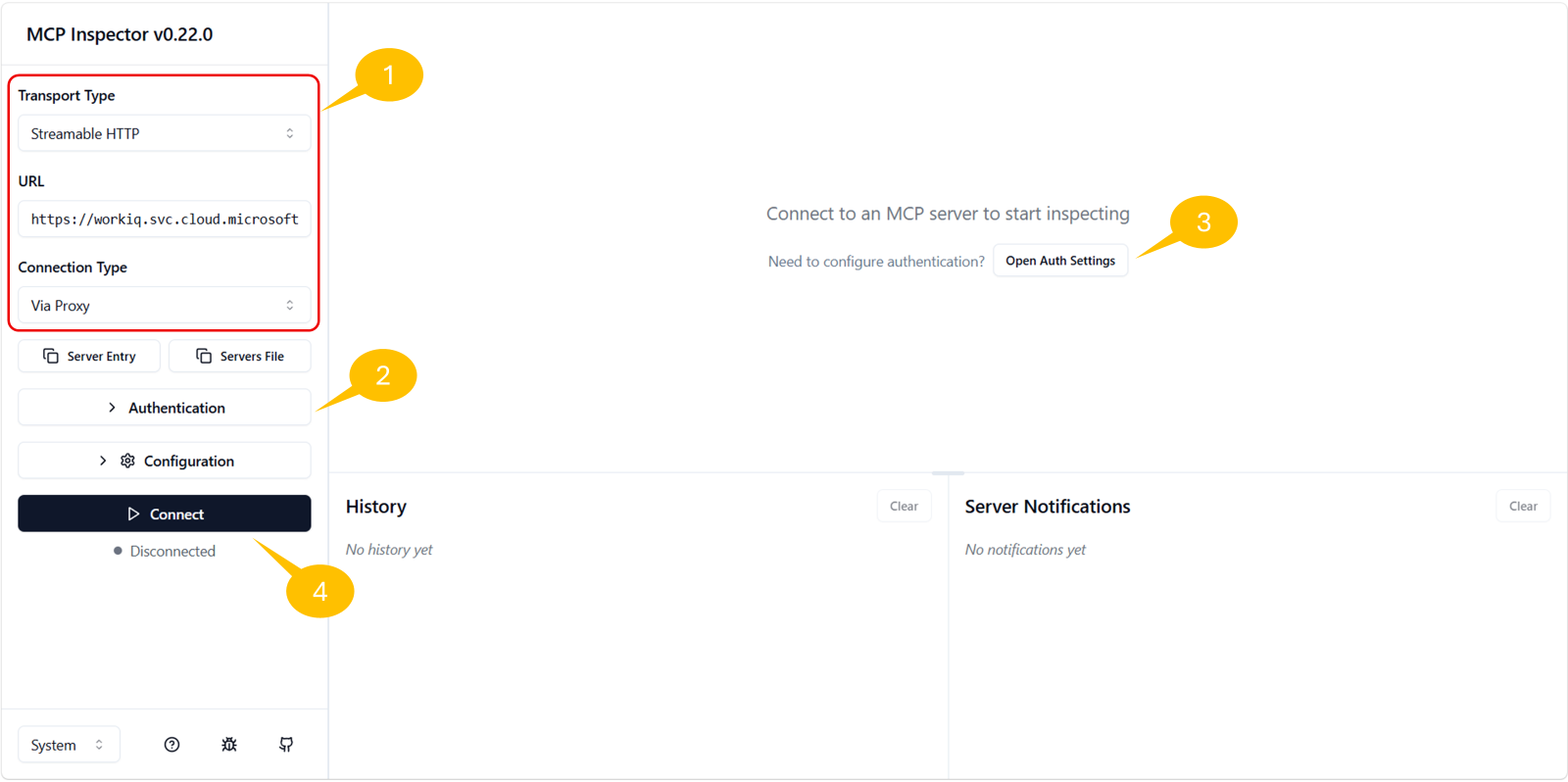
- Find the connection settings panel on the left side of MCP Inspector 1️⃣
- Set the following parameters.
- Transport Type:
Streamable HTTP - URL:
https://workiq.svc.cloud.microsoft/mcp
- Transport Type:
- Select Authentication 2️⃣ to expand the authentication settings
- Configure OAuth 2.0 Flow with these values.
- Client ID:
CLIENT_IDfrom WIQ01 - Client Secret:
CLIENT_SECRETfrom WIQ01 - Scope:
api://workiq.svc.cloud.microsoft/WorkIQAgent.Ask
- Client ID:
- Collapse the Authentication settings
- Select Open Auth Settings 3️⃣, then choose Quick OAuth Flow
- Sign in with your Microsoft 365 account in the browser popup (the same account used in WIQ01)
- When authentication succeeds, the Authentication completed successfully ✓ message appears
- Select Connect 4️⃣ to create the actual connection to the Work IQ MCP server
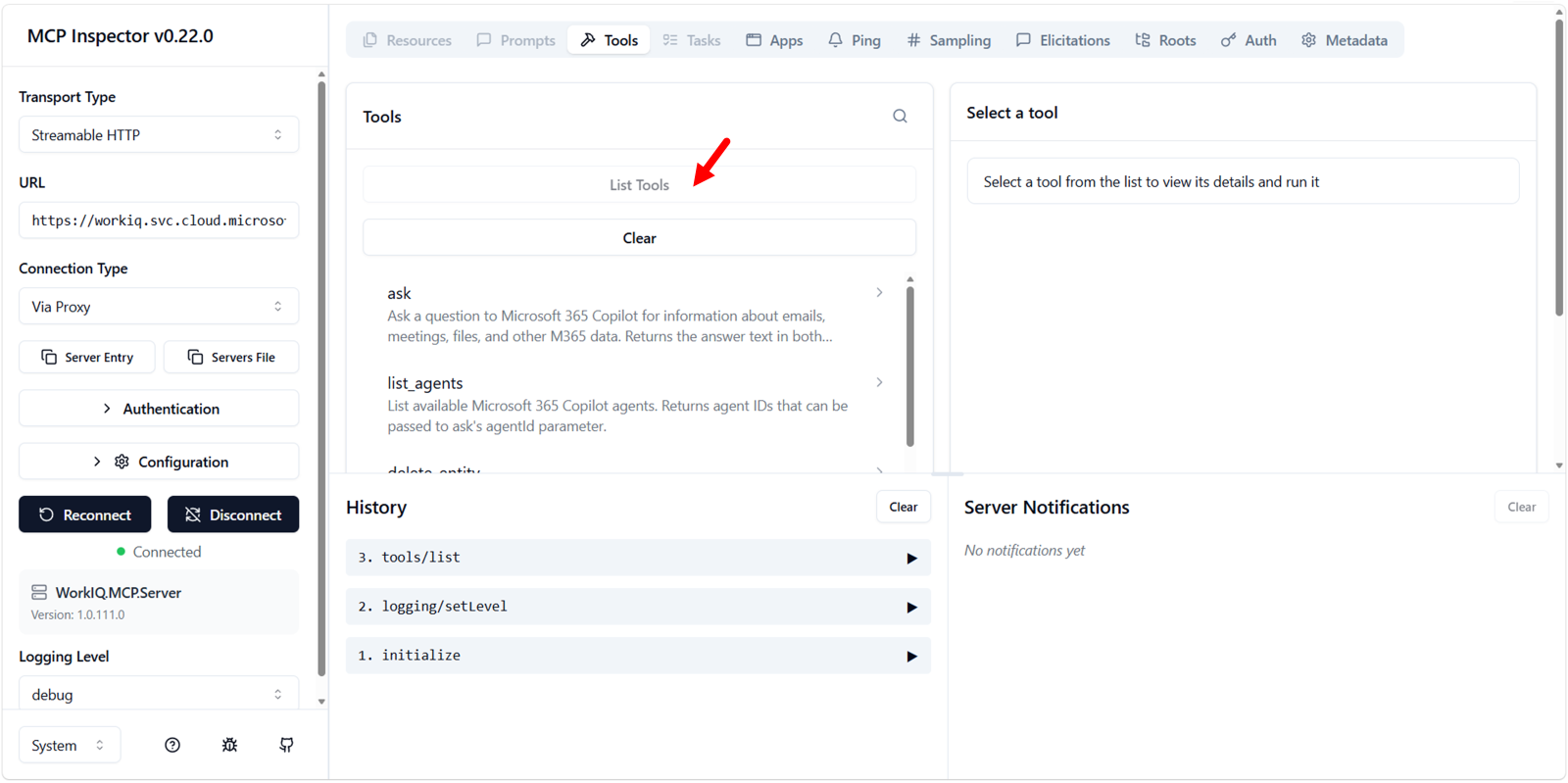
- When the connection succeeds, tabs such as Resources, Prompts, Tools, and Apps appear
- On the Tools tab, click List tools to retrieve the list of tools provided by the Work IQ MCP server
- The tool list described in the previous exercise appears
Exercise 3: Use the ask tool
ask is one of the most powerful tools in Work IQ MCP. It asks Microsoft 365 Copilot natural-language questions about organizational data, abstracting the complexity of multiple Microsoft 365 APIs behind one conversational interface.
Step 1: Explore the ask tool
- Click the Tools tab in MCP Inspector
- Find and click the
asktool to inspect its schema - It accepts the following parameters.
| Parameter | Required | Description |
|---|---|---|
question |
✅ | Natural-language question |
agentId |
— | Route to a specific agent |
fileUrls |
— | OneDrive or SharePoint file URLs to use as context |
conversationId |
— | For multi-turn conversations |
timeZone |
— | IANA time zone identifier |
Step 2: Ask a natural-language question
- Click the
asktool to prepare a tool call -
Enter this in the question field:
Who am I? What is my role in the company? - Leave the remaining fields empty
- Click Run Tool
Step 3: Observe the response
After running it, check the two response types.
- Structured Content — JSON object
answer: formatted responseconversationId: conversation ID for multi-turn interactions
- Unstructured Content — plain-text response containing identity and role information
Step 4: Follow-up question (multi-turn)
You can have a multi-turn conversation using the conversationId from the previous response.
- Click the
asktool again -
Enter the following question:
Who is my manager? - Paste the conversation ID from the previous response into the conversationId field
- Click Run Tool
Work IQ preserves context across turns, so the follow-up question is understood within the previous conversation context.
Exercise 4: Discover schemas with getSchema
getSchema lets agents discover the structure and requirements of Work IQ operations at runtime. Instead of relying on hardcoded knowledge, agents can query which fields exist, what is required, and what data types to expect. This tool makes Work IQ self-describing.
Step 1: Understand the getSchema tool
| Parameter | Required | Description |
|---|---|---|
path |
— | API path to get the schema for (for example, /me/messages) |
operationType |
✅ | Operation type (fetch, create, update) |
format |
— | Output format (jsonschema or typescript) |
agentId |
— | Reserved for future use |
Step 2: Retrieve the mail message schema
- Click the
getSchematool - Enter these parameters:
- path:
/me/messages - operationType:
fetch - format:
jsonschema
- path:
- Click Run Tool
Step 3: Analyze the mail message schema
A detailed OpenAPI schema is returned.
{
  "$schema": "https://json-schema.org/draft/2020-12/schema",
  "title": "microsoft.graph.messageCollectionResponse",
  "type": "object",
  "properties": {
    "value": {
      "type": "array",
      "items": {
        "$ref": "#/$defs/microsoft.graph.message"
      }
    }
  }
}
Inside the message object, you can see properties such as:
| Group | Properties |
|---|---|
| Core identification | id, subject, conversationId, internetMessageId |
| Recipients and senders | from, sender, toRecipients, ccRecipients, bccRecipients, replyTo |
| Content | body (content, contentType), bodyPreview, uniqueBody |
| Timestamps | receivedDateTime, sentDateTime, createdDateTime, lastModifiedDateTime |
| Status flags | isRead, isDraft, hasAttachments, isDeliveryReceiptRequested, isReadReceiptRequested |
| Message properties | importance, inferenceClassification, categories |
| Advanced features | flag, internetMessageHeaders, webLink, parentFolderId |
Step 4: Retrieve the calendar event schema
This time, retrieve the schema for creating calendar events.
- Click the
getSchematool again - Enter the parameters:
- path:
/me/events - operationType:
create - format:
jsonschema
- path:
- Click Run Tool
Inspect the response to identify the required and optional fields needed to create a calendar event (used in Exercise 6).
Exercise 5: Retrieve mail with fetch
fetch reads one or more entities by resource path. It supports Microsoft Graph query parameters such as $top, $select, and $filter, so you can control returned data.
Step 1: Understand the fetch tool
| Parameter | Required | Description |
|---|---|---|
entityUrls |
✅ | Array of relative resource paths to retrieve |
agentId |
— | Reserved for future use |
Step 2: Retrieve recent inbox mail
- Click the
fetchtool -
In the entityUrls field, select Add Item and add the following item.
/me/messages?$top=5&$select=id,subject,from,receivedDateTime,isRead - Click Run Tool
This query:
- Retrieves the top 5 messages from the inbox
- Selects only the
id,subject,from,receivedDateTime, andisReadfields - Reduces the response size by avoiding unnecessary fields
You can also switch to low-level definition with Switch to JSON.
["/me/messages?$top=5&$select=id,subject,from,receivedDateTime,isRead"]
Step 3: Analyze the response
The response is a results array containing one object per entityUrl.
{
  "results": [
    {
      "data": {
        "value": [
          {
            "id": "AAMkADk0...",
            "subject": "Your weekly PIM digest for Contoso",
            "from": {
              "emailAddress": {
                "name": "Microsoft Security",
                "address": "MSSecurity-noreply@microsoft.com"
              }
            },
            "receivedDateTime": "2026-05-31T15:40:44Z",
            "isRead": false
          }
        ]
      },
      "statusCode": 200
    }
  ]
}
Step 4: Try different queries
Retrieve only unread mail
/me/messages?$top=10&$select=id,subject,from&$filter=isRead eq false
Retrieve mail from a specific sender
/me/messages?$top=5&$select=id,subject,from,receivedDateTime&$filter=from/emailAddress/address eq 'user@example.com'
Retrieve multiple paths at once (multiple items in the array)
[
  "/me/messages?$top=3&$select=id,subject",
  "/me/events?$top=3&$select=id,subject,start,end"
]
The fetch tool can query multiple paths in parallel in a single call, making it efficient for agents that need to gather data from multiple sources.
Exercise 6: Create a calendar event with create_entity
create_entity creates a new entity in a collection. Use the schema discovered in Exercise 4 to create a calendar event.
Step 1: Understand the create_entity tool
| Parameter | Required | Description |
|---|---|---|
parentUrl |
✅ | Relative resource path of the collection (for example, /me/events) |
jsonBody |
✅ | Pass entity data as a JSON-encoded string |
agentId |
— | Reserved for future use |
Note — jsonBody must be a JSON-encoded string, not a JSON object. In other words, stringify the JSON before passing it.
Step 2: Prepare event data
Required fields for a calendar event are subject (title), start (start date/time with time zone), and end (end date/time with time zone). attendees is optional.
{
  "subject": "Team Standup - Work IQ MCP Lab",
  "start": {
    "dateTime": "2026-08-04T14:00:00",
    "timeZone": "UTC"
  },
  "end": {
    "dateTime": "2026-08-04T14:30:00",
    "timeZone": "UTC"
  },
  "isReminderOn": true,
  "reminderMinutesBeforeStart": 15,
  "categories": ["Work", "Lab"]
}
Step 3: Create the calendar event
- Click the
create_entitytool - Enter the parameters:
- parentUrl:
/me/events - jsonBody: copy and paste the event JSON defined in the previous step
- parentUrl:
- Click Run Tool
Step 4: Verify creation result
The created event object is returned with a 201 Created response.
{
  "statusCode": 201,
  "data": {
    "id": "AAMkADk0...",
    "subject": "Team Standup - Work IQ MCP Lab",
    "start": {
      "dateTime": "2026-08-04T14:00:00.0000000",
      "timeZone": "UTC"
    },
    "end": {
      "dateTime": "2026-08-04T14:30:00.0000000",
      "timeZone": "UTC"
    }
  }
}
The event has been created in the calendar. You can check it directly in the Microsoft 365 calendar, or verify it by using the fetch tool with the returned event ID.
Step 5: Create an event with attendees
This time, create an event with attendees.
{
  "subject": "Project Planning Meeting",
  "start": {
    "dateTime": "2026-08-05T10:00:00",
    "timeZone": "UTC"
  },
  "end": {
    "dateTime": "2026-08-05T11:00:00",
    "timeZone": "UTC"
  },
  "attendees": [
    {
      "emailAddress": {
        "address": "colleague@contoso.com",
        "name": "Colleague Name"
      },
      "type": "required"
    }
  ],
  "isReminderOn": true,
  "reminderMinutesBeforeStart": 30
}
Use create_entity with the same parameters as Step 3, replacing only jsonBody with this new event. This shows that Work IQ MCP can not only read data, but also create and manage it.
Exercise 7: Understand the power of the MCP model
Now that you have used the core tools, let’s summarize why this design is powerful.
Unified tool model
Instead of exposing separate tools for each resource type — read_messages, create_message, update_message / read_events, create_event, update_event / read_files, … — Work IQ MCP uses only six entity tools (fetch, create_entity, update_entity, delete_entity, do_action, call_function) that operate on resource paths. The benefits are:
| Benefit | Description |
|---|---|
| Extensibility | New Microsoft 365 workloads (Files, Teams, Sites, and so on) are added as new paths, and the number of tools does not increase |
| Consistency | Agents learn the pattern once (read with fetch, create with create_entity) and apply it everywhere |
| Runtime discovery | getSchema and search_paths dynamically discover schemas without loading all schemas up front |
| Governance | Admins can control access by path, enabling fine-grained policies beyond OAuth scopes |
Benefits for agents
AI agents using Work IQ MCP can:
- Ask questions naturally with
ask - Discover available operations with
search_paths - Understand data structures with
getSchema - Retrieve, create, and modify entities with general-purpose tools
- Adapt to Microsoft 365 API changes without code modifications
Handling hundreds of Microsoft 365 operations in one consistent way — that is the power of the unified MCP interface.
🎉 Complete
Congratulations! You have mastered the Work IQ MCP protocol.
- ✅ Understood the design principles of the Work IQ MCP integration server
- ✅ Authenticated to Work IQ MCP with Entra ID credentials
- ✅ Asked natural-language questions with the
asktool - ✅ Discovered runtime schemas with the
getSchematool - ✅ Retrieved mail with the
fetchtool - ✅ Created calendar events with the
create_entitytool - ✅ Learned how the unified MCP model scales to hundreds of operations
👉 Lab WIQ04 — Consume Work IQ with the REST protocol