Lab WIQ02 — Work IQ A2A protocol
Communicate with Work IQ through the Agent-to-Agent (A2A) protocol. This lab covers agent card discovery, Entra ID authentication, streaming messages, protocol traffic inspection, and consuming an A2A agent from Copilot Studio.
▶ One-line summary — A2A is an open standard that lets agents collaborate as peers instead of wrapping them as “stateless tools.” In this lab, you will use the a2a-consumer tool to query the Work IQ Agent Card, send prompts through streaming, inspect wire traffic, and consume Work IQ over A2A from a Copilot Studio agent.
Level 300 · Duration about 40 minutes · Badge WorkIQ-Expert
Translated article — This article is based on Lab WIQ02 from Microsoft official Copilot Developer Camp. The Entra ID app registration from Lab WIQ01 must be completed first.
Scenario
Your organization is building a multi-agent system where agents collaborate smoothly. In WIQ01, you registered the Work IQ agent in Microsoft Entra ID, and now you need to enable another agent to consume Work IQ capabilities through the A2A (Agent-to-Agent) protocol.
A2A is an open standard that lets AI agents communicate and collaborate with Work IQ without complex integration. In this lab, you will learn how to:
- Discover Work IQ capabilities through an Agent Card
- Authenticate securely with Entra ID tokens
- Send simple and complex prompts through A2A
- Inspect protocol traffic to understand how agents exchange information
- Consume Work IQ A2A from Copilot Studio
Lab goals
- Explain the A2A protocol and understand how it differs from traditional tool-based integration
- Connect to Work IQ with the
a2a-consumertool and inspect the Agent Card - Run basic queries (“Who am I?”, “Who is my manager?”)
- Write complex multi-step prompts
- Inspect A2A protocol traffic and understand message flow, streaming, and the task lifecycle
- Build an agent that can delegate work to Work IQ
Exercise 1: Understand the A2A protocol
Step 1: A2A basics
A2A (Agent-to-Agent) protocol is an open standard that lets AI agents communicate and collaborate seamlessly. Unlike traditional integrations that wrap agents as stateless tools, A2A lets agents interact as first-class citizens. They can negotiate, delegate tasks, and preserve context across multi-turn conversations.
Key difference from MCP
| Protocol | Characteristics |
|---|---|
| MCP (Model Context Protocol) | Connects an LLM to tools and data. Tools are stateless and perform specific functions |
| A2A | Enables agent-to-agent collaboration. Agents retain autonomy, preserve state, and exchange rich structured messages |
Why A2A matters for Work IQ
- Work IQ is an agent that understands Microsoft 365 data (mail, meetings, files, Teams messages, people, and more)
- Other agents can delegate work to Work IQ without wrapping it as a tool
- It supports long-running work, streaming, and complex multi-turn interactions
Step 2: A2A request lifecycle
Every A2A interaction follows this lifecycle.
- Agent Discovery — the client retrieves the remote Agent Card from
/.well-known/agent-card.json - Authentication — the client obtains an Entra ID access token with permission to call the remote agent
- SendMessage API — the client sends a JSON-RPC request containing the user message
- SendMessageStream API — the client opens a streaming channel for real-time task updates and artifacts
Work IQ A2A endpoints
| Purpose | URL |
|---|---|
| Default Agent Card | https://workiq.svc.cloud.microsoft/a2a/.well-known/agent-card.json |
| Specific Agent Card | https://workiq.svc.cloud.microsoft/a2a/{agent-id}/.well-known/agent-card.json |
| Message endpoint | POST https://workiq.svc.cloud.microsoft/a2a/ |
A2A version — Work IQ supports both A2A v1.0 and v0.3. To use v1.0 capabilities such as SendMessage, use the A2A-Version: 1.0 header.
Step 3: Understand authentication and permissions
A2A communication with Work IQ requires the following:
- Entra ID delegated authentication — requests run in the signed-in user context (not app-only)
- Access token — passed in the
Authorizationheader as ** - Permission trimming — Work IQ automatically honors the user’s Microsoft 365 permissions and compliance policies
- OBO (on-behalf-of) flow — supports scenarios where an agent acts on behalf of another agent or service
This lab uses the a2a-consumer tool, which handles Entra ID authentication and token exchange internally.
Exercise 2: Connect to Work IQ with A2A
Step 1: Prepare the a2a-consumer tool
a2a-consumer is a testing and inspection tool that can:
- Discover agents and inspect Agent Cards
- Send synchronous and asynchronous messages
- Monitor streaming responses in real time
- Inspect JSON-RPC request/response traffic
Clone the a2a-consumer repository.
git clone https://github.com/PaoloPia/a2a-consumer
cd a2a-consumer
npm install
npm run dev
A local web server for A2A testing starts. Once it is running, open http://localhost:5173/ in your browser.
Step 2: Configure authentication
To communicate with Work IQ, you need an Entra ID app registration with the following:
- Tenant ID, Application ID, and Client Secret from WIQ01
- Redirect URI:
http://localhost:5173/oauth/callback(the actual a2a-consumer URL may vary by environment) - Permission scope:
api://workiq.svc.cloud.microsoft/WorkIQAgent.Ask
In the a2a-consumer interface:
- Set Connection to this URL:
https://workiq.svc.cloud.microsoft/a2a/.well-known/agent-card.json - In the Authentication panel, configure:
- OAuth Flow
- Client Secret (dev proxy)
- Tenant Id — the Tenant Id saved in WIQ01
- Client Id — the Application Id saved in WIQ01
- Redirect URI —
http://localhost:5173/oauth/callback(must be registered as a web callback URL in the Entra ID app from WIQ01) - Client Secret — the Client Secret saved in WIQ01
- Select Authorize & Get Token to complete the authentication flow. When the token is acquired, a
Token acquired (expires ...)message appears.
The tool has now obtained an access token on behalf of the user and includes it in all A2A requests.
Step 3: Retrieve the Work IQ Agent Card
The Agent Card is a JSON document that describes Work IQ capabilities, authentication requirements, and endpoints.
- Click Connect to connect to Work IQ over A2A. Status should become Connected.
- In the Agent Card panel of the Summary & Validation section, check:
- Name:
Microsoft Copilot - Version:
1.0.0 - URL:
https://workiq.svc.cloud.microsoft/a2a
- Name:
Use Raw JSON to view the original JSON, or Settings Table to view it as a formatted table.
Example Agent Card structure
{
  "name": "Microsoft Copilot",
  "description": "An AI-powered assistant that helps users with business-related tasks such as managing emails, scheduling meetings, and organizing documents.",
  "url": "https://workiq.svc.cloud.microsoft/a2a",
  "iconUrl": "https://copilot.microsoft.com",
  "provider": {
    "organization": "Microsoft",
    "url": "https://www.microsoft.com"
  },
  "version": "1.0.0",
  "protocolVersion": "0.3.0",
  "capabilities": {
    "streaming": true,
    "pushNotifications": false,
    "stateTransitionHistory": false,
    "extensions": []
  },
  "defaultInputModes": [
    "text"
  ],
  "defaultOutputModes": [
    "text"
  ],
  "skills": [],
  "supportsAuthenticatedExtendedCard": false,
  "additionalInterfaces": [],
  "preferredTransport": "JSONRPC",
  "supportedInterfaces": [
    {
      "url": "https://workiq.svc.cloud.microsoft/a2a",
      "protocolBinding": "JSONRPC",
      "protocolVersion": "1.0"
    }
  ]
}
Step 4: Interpret the Agent Card response
Look at the key fields in Raw JSON.
| Field | Meaning |
|---|---|
supportedInterfaces |
Endpoint URL and protocol binding (JSONRPC) |
capabilities.streaming |
true — Work IQ supports real-time streaming responses |
securitySchemes |
Entra ID authorization URL and token endpoint |
defaultInputModes / defaultOutputModes |
Both are ["text"] — communication uses text messages |
This card tells the consumer agent how to authenticate, where to send requests, and what capabilities to expect.
Exercise 3: Send basic prompts
Step 1: Write a simple JSON-RPC message
Go to the A2A Messaging & Operations panel in a2a-consumer and enter the following prompt in the Chat section.
Who am I?
With the Stream option checked, select Send. After a moment, the Work IQ A2A server returns an answer in the Chat area.
Step 2: Inspect the response
Scroll down in the interface and expand the Responses panel. In the Streaming Events section, you can see the SendStreamingMessage messages that Work IQ returned over A2A, along with every chunk of the response rendered in Chat.
Expand the On-Wire Communication panel to see the actual requests that a2a-consumer sent to the Work IQ A2A server. There are at least three requests.
| Request | Role |
|---|---|
| GetAgentCardDocument | Initial request to retrieve the Agent Card |
| SendStreamingMessage | Request that submits the prompt to the A2A server |
| SubscribeToTask | Request that subscribes to task updates |
After checking them, select Hide Wire Inspector and Hide Responses to return to the Chat area.
Step 3: Follow-up question with retained context
Ask about your manager in the same context.
Who is my manager?
Important — When you inspect the second SendStreamingMessage, you can see that the contextId value is the same as the previous response. This value tells Work IQ to preserve conversational continuity.
The response returns with awareness of the previous message. Because Work IQ understood you in the context of “Who am I?”, it answers “Who is my manager?” with relevant information.
Benefit of multi-turn — You can continue with follow-up, clarification, and related questions without resending identity information every time. contextId preserves state.
Step 4: Write a complex prompt
A2A shines when requesting structured output. Try requesting a list of upcoming meetings.
Create a list of all my upcoming meetings in the next 10 days. Include meeting title, attendees, time, and a brief description. For each meeting, suggest me topics that I should dig into, to be more effective. Format it professionally.
Work IQ reasons over your calendar, retrieves meetings, and generates structured output. The response includes a link to a generated document stored in OneDrive for Business.
Exercise 4: Use Work IQ over A2A from a Copilot Studio agent
Step 1: Create a new agent in Copilot Studio
Open Copilot Studio. Select the target environment and create a new agent in the UI.
If you do not have an environment — You can use the default environment or create a new one. To create a new environment, follow steps 1–3 in the Trial Environment Setup section of the Recruit — Course Setup article from Agent Academy.
- Select Agents and click + Create blank agent
- Set the name to
WorkIQ Consumer Agent - Enter the instructions as
Process all the user's requests relying on the Work IQ Agent and then give to the user the received answer - Save the default settings
You now have a Copilot Studio agent ready to orchestrate calls to external systems.
Step 2: Add an authenticated connection to Work IQ over A2A
- Select the Agents tab
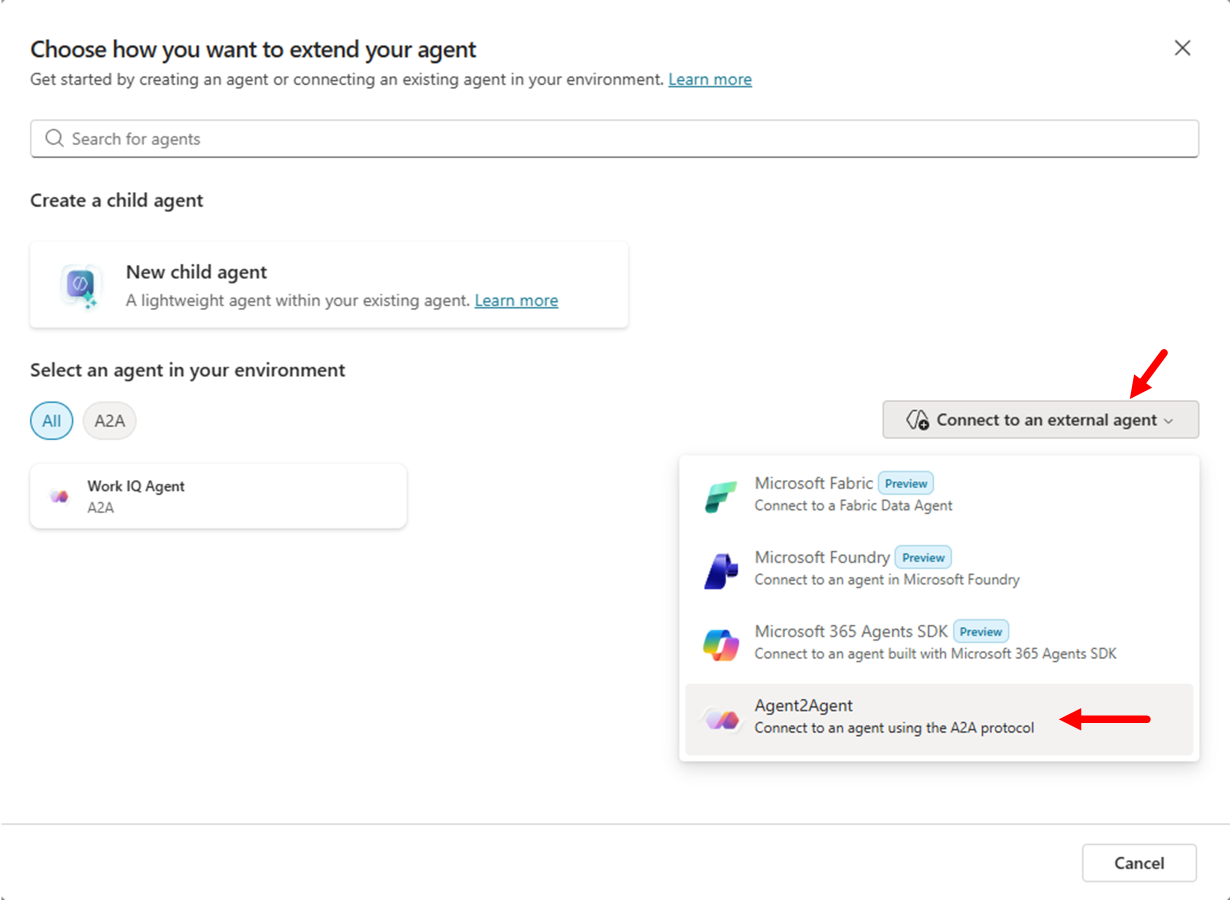
- Add a new connected agent with + Add an agent
- In the popup, select Connect to an external agent, then choose the Agent2Agent option
-
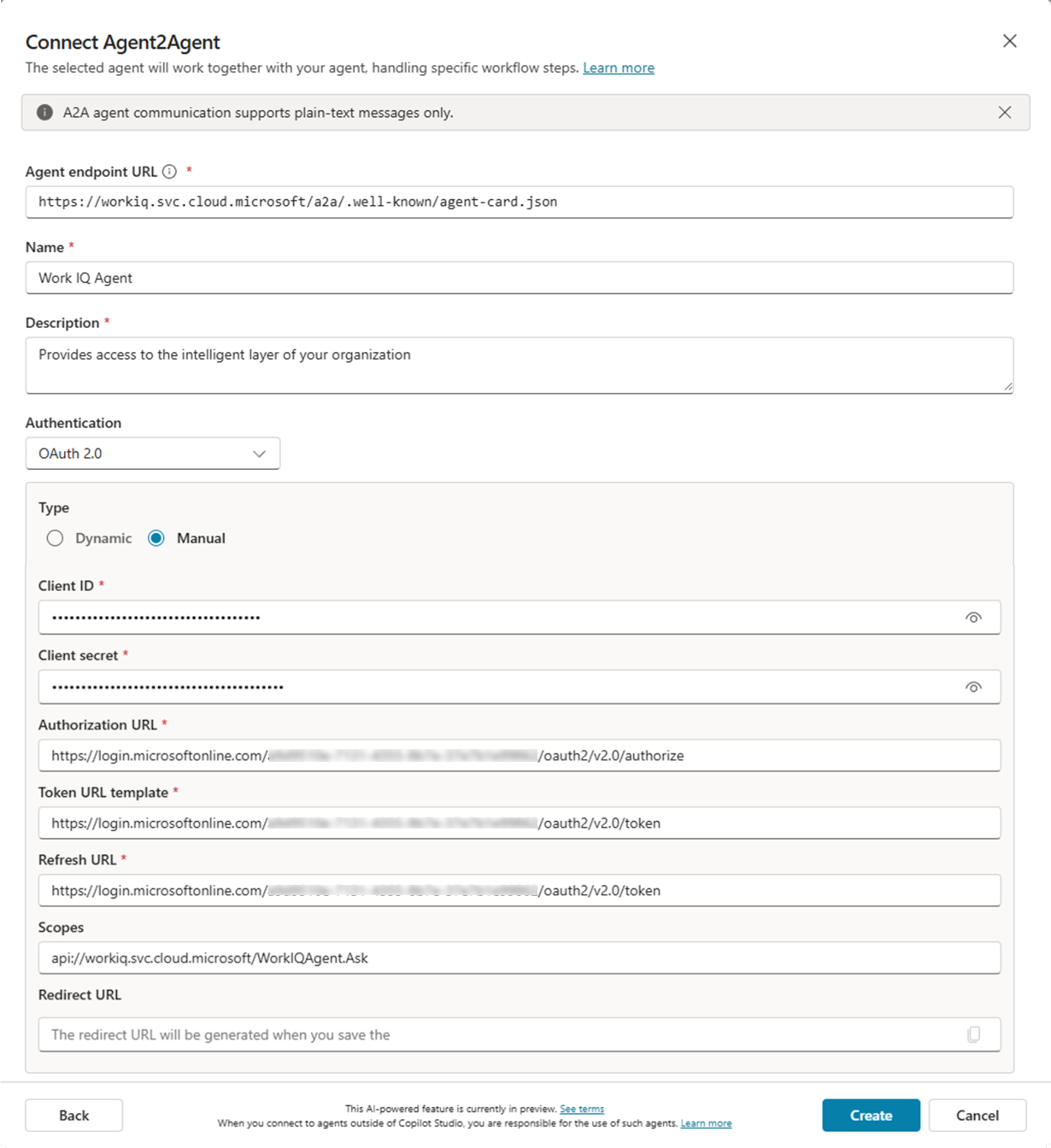
In the Connect Agent2Agent dialog, configure:
- Agent endpoint URL:
https://workiq.svc.cloud.microsoft/a2a/.well-known/agent-card.json - Name:
Work IQ Agent - Description:
Provides access to the intelligent layer of your organization - Authentication:
OAuth 2.0- Type:
Manual - Client ID — Client ID of the Entra ID app registered in WIQ01
- Client Secret — Client Secret from WIQ01
- Authorization URL — Authorization URL from WIQ01
- Token URL template — Token URL from WIQ01
- Refresh URL — Token URL from WIQ01
- Scopes:
api://workiq.svc.cloud.microsoft/WorkIQAgent.Ask - Redirect URL — provided by Copilot Studio after you save the agent connection
- Type:
- Agent endpoint URL:
- Select Create to create the agent connection
- Copilot Studio returns the Redirect URL that the connection will use
- Copy that Redirect URL, configure it as a web redirect URI in the Entra ID application, and wait a few seconds for the settings to be saved
- Return to Copilot Studio, select Next, and connect to Work IQ through the Copilot Studio authentication flow
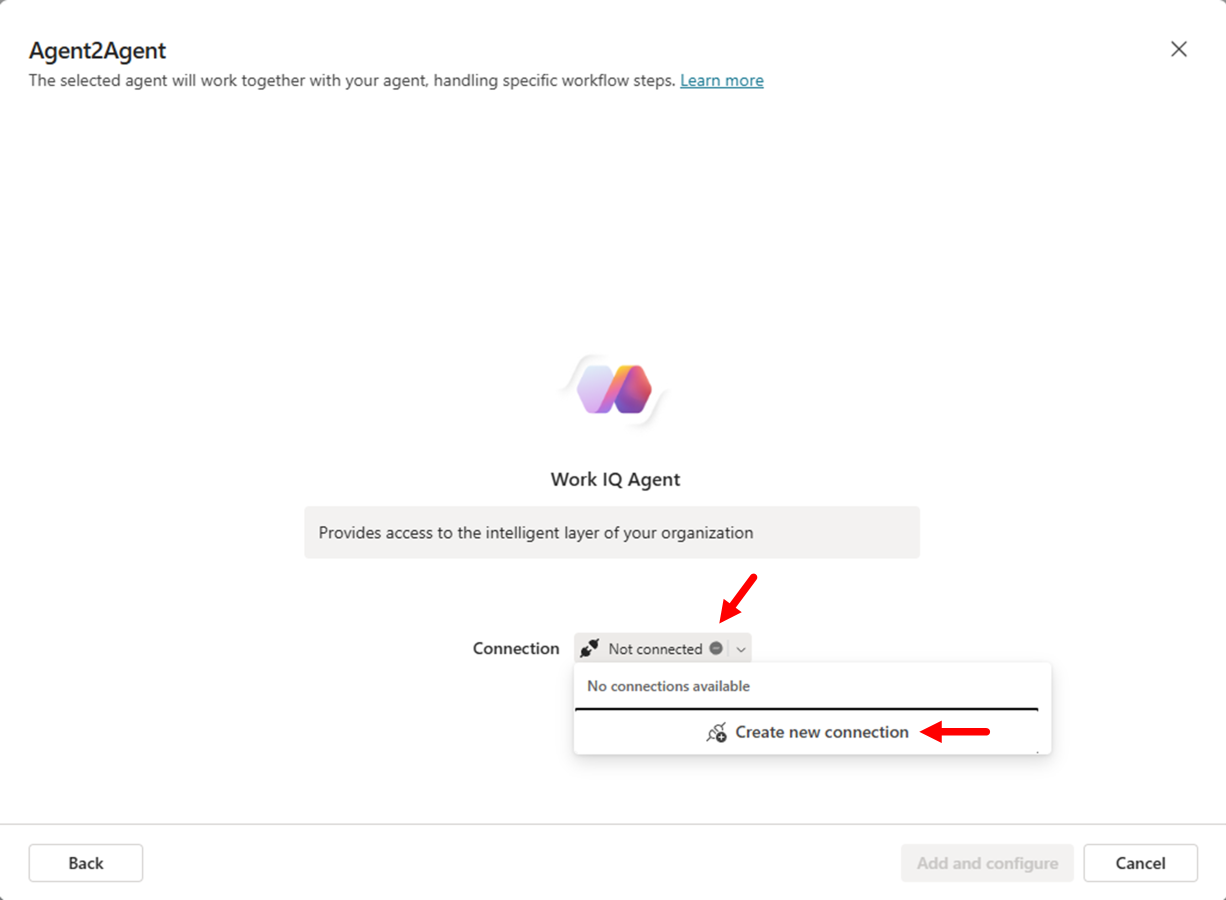
Work IQ is now connected to Copilot Studio over A2A.
Step 3: Test the agent with a simple prompt
Open the Test your agent panel and enter the following prompt.
Who am I? Who is my manager? What is my role in the organization?
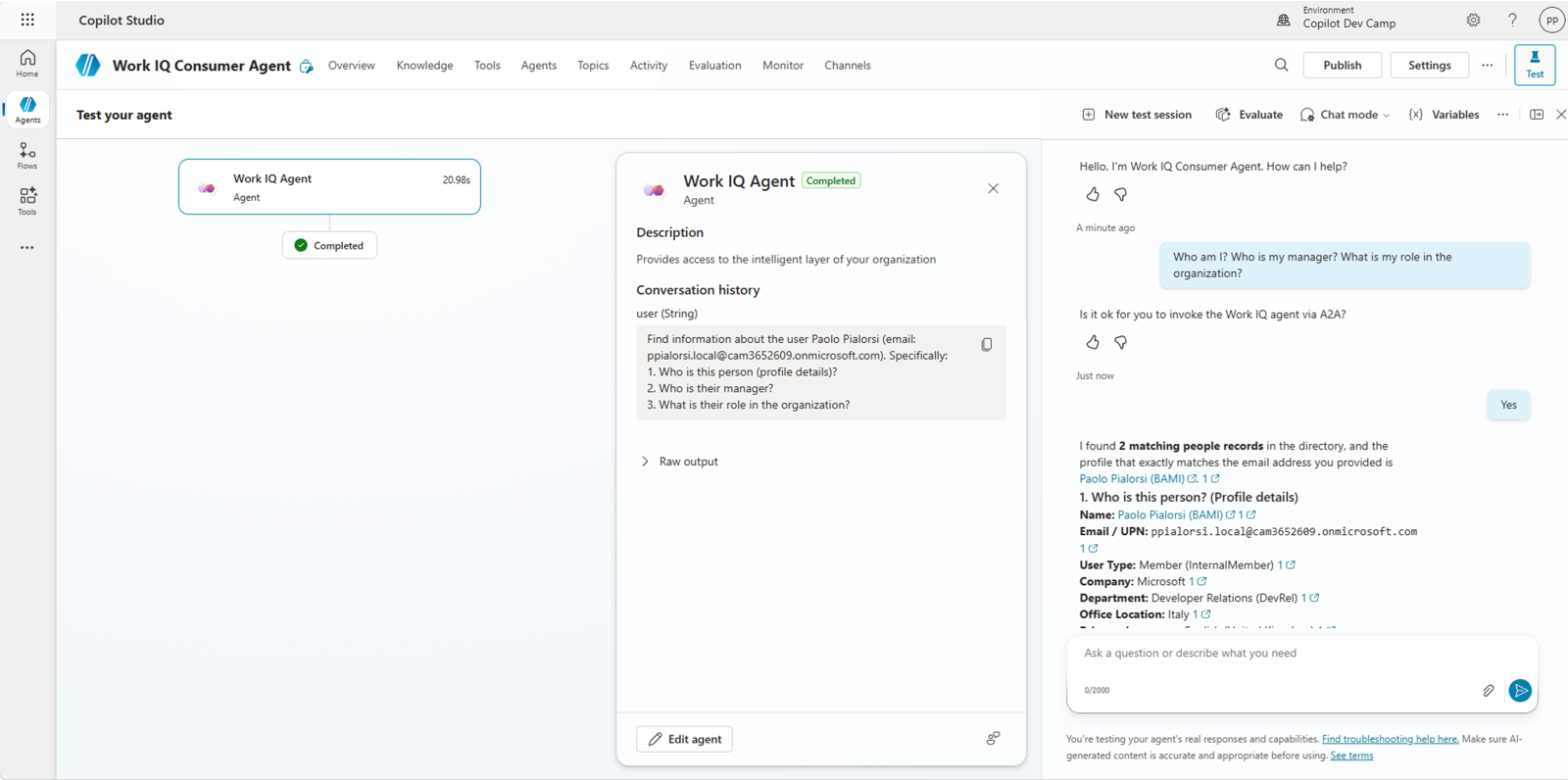
For security reasons, you must confirm that you want to call Work IQ over A2A. The first time you use it, you also need to connect your account in the test chat.
Step 4: Test with a complex prompt
This time, test a complex prompt that asks Work IQ to create structured data and output a Word document (.docx).
Create a list of all my upcoming meetings in the next 10 days. Include meeting title, attendees, time, and a brief description. For each meeting, suggest me topics that I should dig into, to be more effective. Format it professionally. Create a Word document as the output.
You can confirm that the response includes a link to the Word document that Work IQ generated on the fly.
🎉 Complete
Congratulations! You completed the Work IQ A2A protocol lab. You learned:
- ✅ A2A basics — how agents communicate through A2A and why it is better than wrapping agents as tools
- ✅ Agent discovery — how to retrieve Agent Cards and understand capabilities and authentication
- ✅ Basic prompts — sending simple queries and preserving multi-turn context
- ✅ Complex prompts — requesting artifact (Word document) generation and using streaming for long-running work
- ✅ Protocol inspection — monitoring raw A2A traffic, understanding request/response flows, and debugging
- ✅ Multi-agent architecture — consuming Work IQ from Copilot Studio through A2A
👉 Lab WIQ03 — Work IQ MCP protocol