Deploying Enterprise MCP with A365 CLI
Learn how to register a bring-your-own (BYO) MCP server in the enterprise with Agent 365 CLI, from Entra OAuth authentication configuration through admin approval and usage under centralized governance.
▶ One-line summary — When you register a bring-your-own (BYO) MCP server in the enterprise with Agent 365 CLI, every tool invocation goes through the Agent 365 Tooling Gateway, giving IT admins visibility and control. After admin approval, makers can use it directly in Copilot Studio without any additional URL or authentication configuration. This article focuses on Entra OAuth authentication configuration and common registration errors, based on hands-on validation.
⚠️ All features and screens in this document are based on Preview and are subject to change.
1. Overview (Enterprise Registration — BYO MCP Server)
When centralized governance is required for production deployment, register the MCP server through Agent 365 CLI. This approach routes every tool invocation through the Agent 365 Tooling Gateway, giving IT admins visibility and control.
The developer → admin → user flow is as follows.
- A developer registers a remote MCP server with Agent 365 CLI (server URL, authentication type, tool declarations).
- An IT admin reviews and approves the server and tools in the Microsoft 365 admin center, and consents to the required Entra permissions.
- A maker configures an agent by calling the approved server from Copilot Studio or another client.
- The security team monitors tool invocations with Microsoft Defender advanced hunting.
⚠️ Note: BYO MCP servers are currently in Preview. Supported clients: Copilot Studio, VS Code, Claude Code, GitHub Copilot CLI Not supported: Azure AI Foundry, Microsoft 365 Declarative Agents
2. Prerequisites
2.1 Install Agent 365 CLI
Agent 365 CLI is a .NET global tool.
dotnet tool install -g Microsoft.Agents.A365.DevTools.Cli
# Update if already installed
dotnet tool update  -g Microsoft.Agents.A365.DevTools.Cli
Confirm that the version is 1.1.165 or later.
a365 --version
2.2 Check the service principal
The Agent 365 service principal must be provisioned in the tenant. Check the following app ID.
az ad sp show --id "ea9ffc3e-8a23-4a7d-836d-234d7c7565c1" --query "displayName" -o tsv
# Example result: Agent Tools
If you cannot find this service principal, provision it by following the Set up service principal procedure in the Agent 365 documentation (global admin permissions required).
2.3 Supported authentication types
The remote MCP server must be configured with one of the following.
| Authentication type | Description |
|---|---|
| NoAuth | No authentication (public endpoint) |
| APIKey | Pass an API key through a Header or Query parameter |
| ExternalOAuth | OAuth from an external IdP |
| EntraOAuth | OAuth based on Microsoft Entra ID |
This article focuses on EntraOAuth, which is most commonly used in enterprises.
3. Configure Entra OAuth authentication (the most confusing part)
Key point — EntraOAuth registration is a delegated flow. Because the Gateway calls your API on behalf of the user, the Entra app for your MCP server must define a “delegated scope” (Delegated Scope, oauth2PermissionScopes), not an “app role” (App Role). If you miss this, registration fails.
3.1 App registration and Application ID URI
First, register the Entra app that represents your MCP server (API), and set the Application ID URI to api://<clientId>. This URI becomes the audience of issued tokens.
# 1) Create app registration (single tenant)
appId=$(az ad app create --display-name "byo-mcp-test-api" \
  --sign-in-audience AzureADMyOrg --query appId -o tsv)
objId=$(az ad app show --id "$appId" --query id -o tsv)

# 2) Application ID URI = api://<appId>
az ad app update --id "$objId" --identifier-uris "api://$appId"
3.2 What is a delegated scope, and why is it needed?
A delegated scope (delegated permission / OAuth2 permission scope) defines “the unit of work this API allows external clients to perform on behalf of the user.” It has the following roles.
- Catalog of permissions provided by the API — The client (in this case, the Gateway’s proxy app) can request only scopes in this catalog. If it requests a name that is not in the catalog, it is rejected with “scope not found”.
- Unit of consent — When an admin/user consents that “this client may call my API on behalf of the user,” the target of that consent is this delegated scope.
- Permission marker in the token — The scope name is included in the
scp(scope) claim of the issued access token. Your MCP server uses this value to verify that the call is a valid delegated call.
App Role vs delegated scope
- App Role: An application calls as its own identity (client credentials, no user). The token has a
rolesclaim.- Delegated scope: An application calls on behalf of a user (delegated). The token has an
scpclaim.- BYO MCP EntraOAuth uses delegated scopes.
3.3 Add a delegated scope (portal)
In the Entra portal, go to App registrations → Manage → Expose an API. Confirm that the Application ID URI is set to api://<appId> and that the delegated scopes you define appear in the list below. Note that the screen description says “Adding a scope here creates delegated permissions only” — this is exactly the permission type EntraOAuth requires.
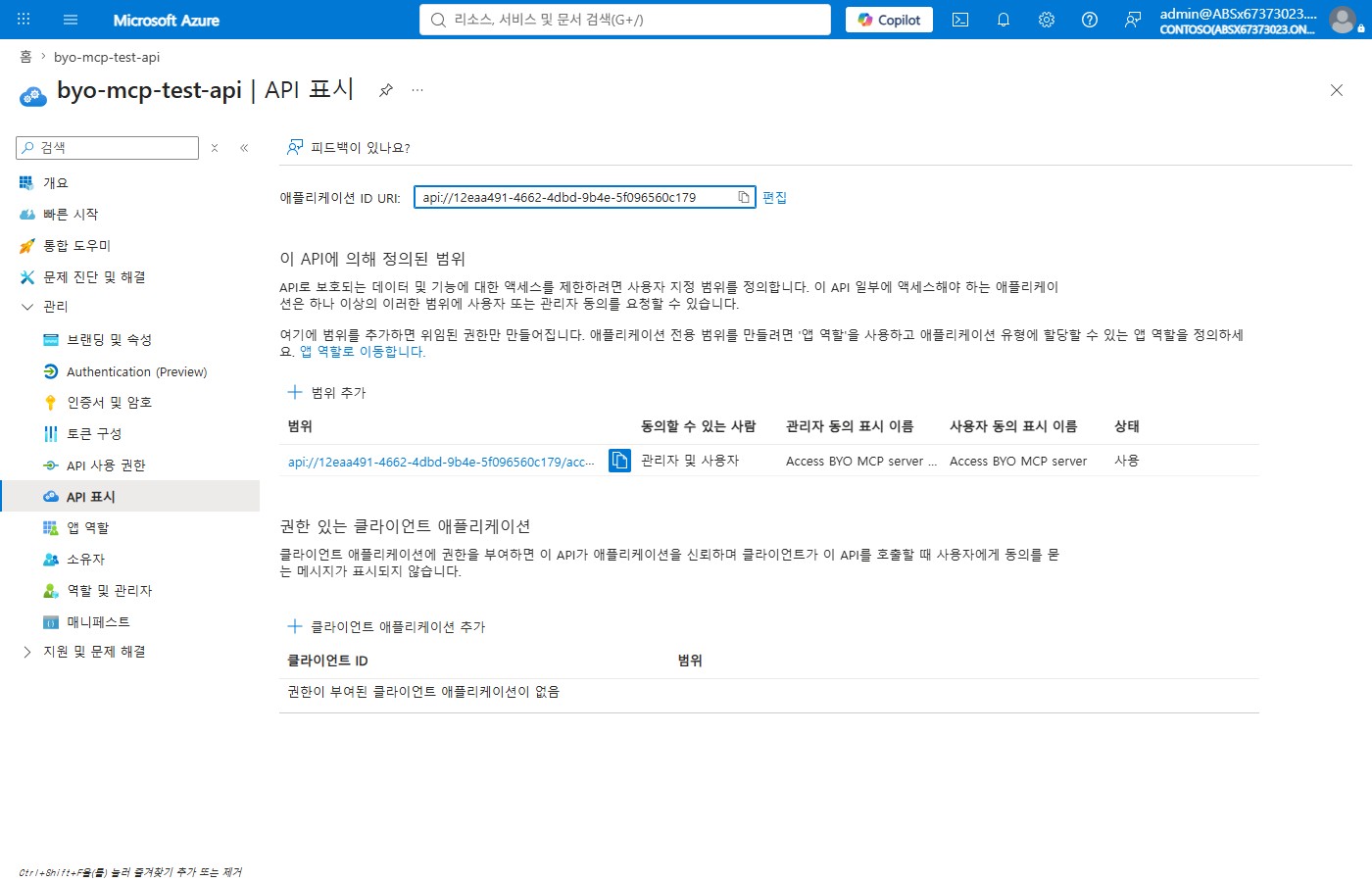
Click + Add a scope to define the delegated scope. In this example, the scope name is access_as_user, and Who can consent is set to Admins and users.
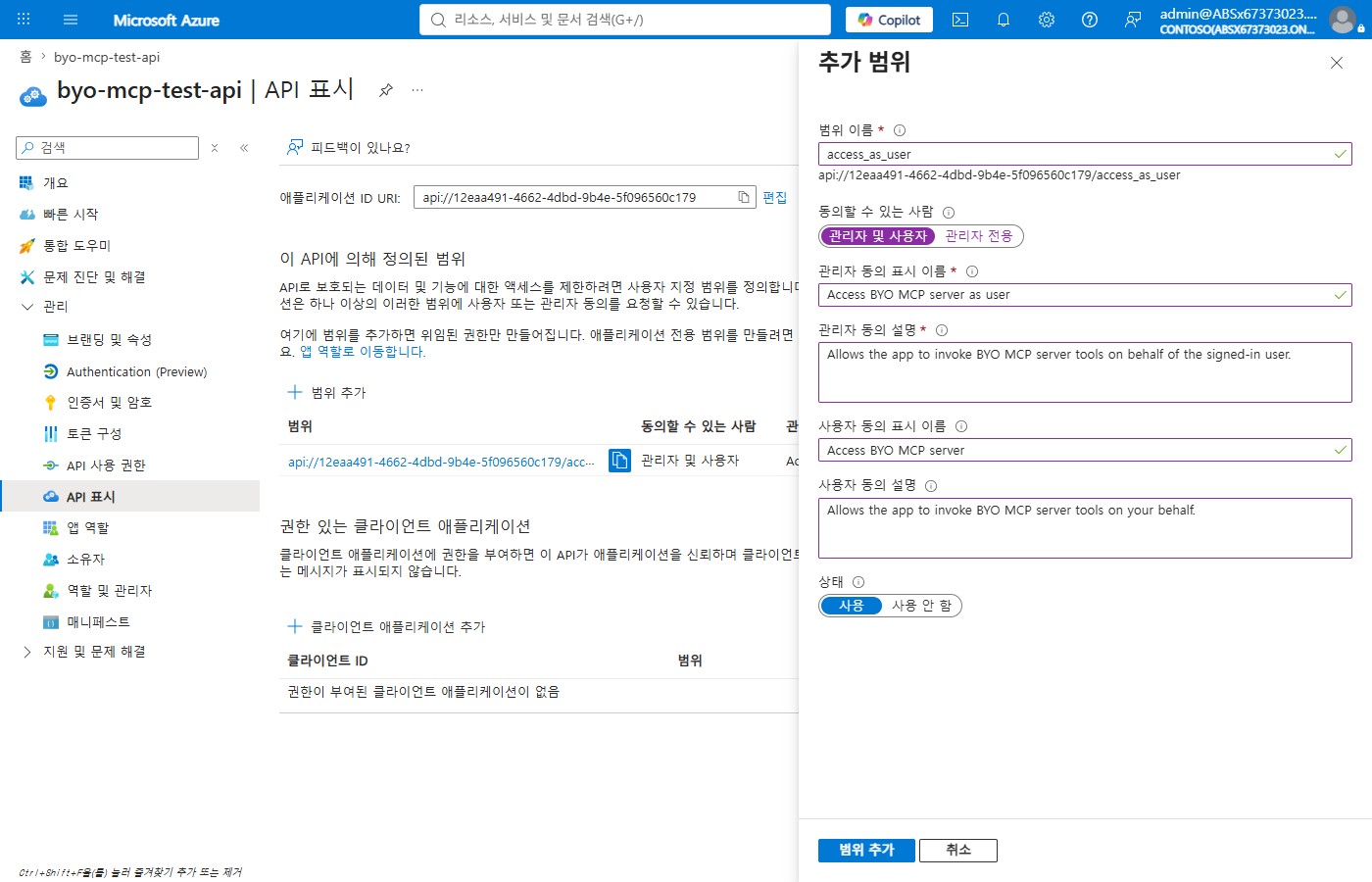
💡 To add a delegated scope with the CLI (
az), PATCH Microsoft Graph. Note that delegated scopes are not configured withaz ad app update’s--identifier-urisor--app-roles.az rest --method PATCH \ --url "https://graph.microsoft.com/v1.0/applications/$objId" \ --headers "Content-Type=application/json" \ --body '{"api":{"oauth2PermissionScopes":[{ "id":"'"$(python -c 'import uuid;print(uuid.uuid4())')"'", "value":"access_as_user","type":"User","isEnabled":true, "adminConsentDisplayName":"Access BYO MCP server as user", "adminConsentDescription":"Allows the app to invoke BYO MCP server tools on behalf of the signed-in user." }]}}'
3.4 remote-scopes to use during registration
For the --remote-scopes value in the registration command, use the actual delegated scope name defined above.
api://<appId>/access_as_user
⚠️ If you use
.default, you get aScope '.default' not found on resource <appId>error. That is because.defaultis not an actual scope name; it is a virtual scope for client credentials (application permissions).
4. Register the MCP server (a365 CLI)
Use one of the examples below depending on the authentication method.
4.1 Entra OAuth
a365 develop-mcp register-external-mcp-server \
  --server-name "ext_MyMcp" \
  --server-url "https://my-mcp-server.example.com/mcp" \
  --publisher "Contoso" \
  --description "Internal MCP server" \
  --auth-type EntraOAuth \
  --remote-scopes "api://<appId>/access_as_user" \
  --tools "tool1,tool2"
4.2 No authentication / API key
# NoAuth
a365 develop-mcp register-external-mcp-server \
  --server-name "ext_MyMcp" --server-url "https://my-mcp-server.example.com/mcp" \
  --publisher "Contoso" --description "Internal MCP server" \
  --auth-type "NoAuth" --tools "tool1,tool2"

# API key (Header)
a365 develop-mcp register-external-mcp-server \
  --server-name "ext_MyMcp" --server-url "https://my-mcp-server.example.com/mcp" \
  --publisher "Contoso" --description "Internal MCP server" \
  --auth-type APIKey --api-key-location Header --api-key-name "X-API-Key" \
  --tools "tool1,tool2"
4.3 Register with a JSON file (recommended)
If you have many tools or long descriptions, a JSON file is convenient (it reduces interactive input).
{
  "serverName": "ext_MyMcp",
  "serverUrl": "https://my-mcp-server.example.com/mcp",
  "authType": "EntraOAuth",
  "description": "Internal MCP server",
  "publisherName": "Contoso",
  "tools": [
    { "name": "tool1", "description": "First tool" },
    { "name": "tool2", "description": "Second tool" }
  ],
  "remoteScopes": "api://<appId>/access_as_user"
}
a365 develop-mcp register-external-mcp-server -f register.json
4.4 Check the registration result
The CLI prints a Registration Summary. When you enter y at the confirmation prompt, proxy Entra app creation and API permission assignment proceed. At the end, guidance for the tenant admin approval request is displayed.
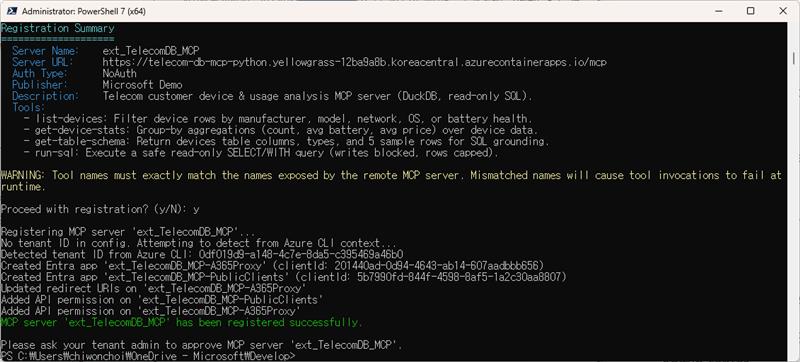
💡 Caution: Tool names must exactly match the names actually exposed by the remote MCP server. If the names do not match, tool invocations fail at runtime.
5. Admin approval
After registration, an IT admin must approve the server. Approval and consent require the AI administrator or global administrator role.
- Sign in to the Microsoft 365 admin center (admin.microsoft.com).
- Go to Agents → Tools → Requests.
- Review the server details and declared tools.
- Click Approve, then consent to the required Microsoft Entra permissions.
5.1 Check the request list
In the admin center, check the registered MCP server request on the Tools → Requests (preview) tab.
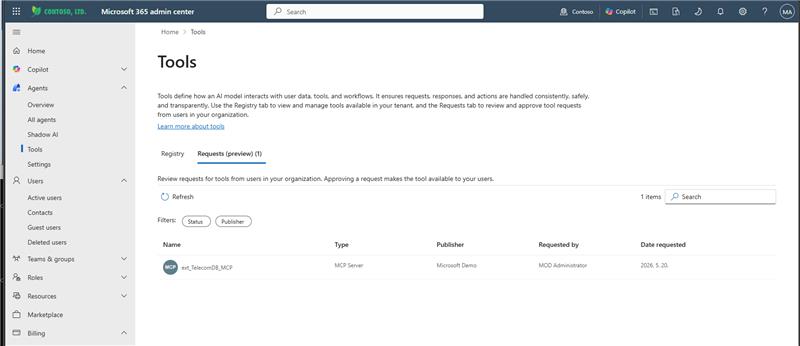
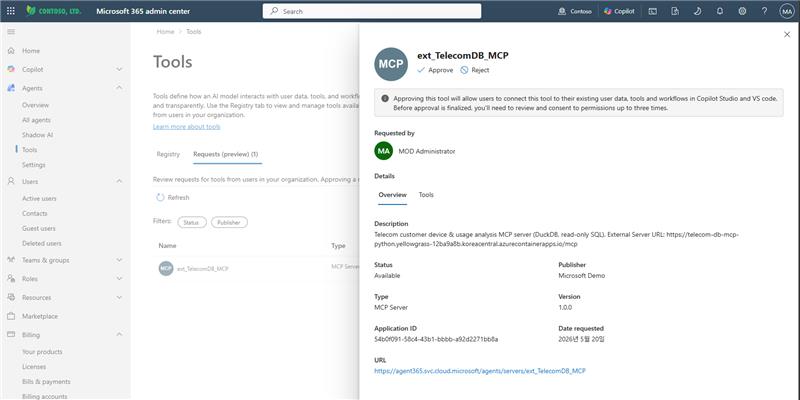
5.2 Review request details (Overview)
When you select the request, you can check details such as the server description, status, publisher, type, application ID, and URL.
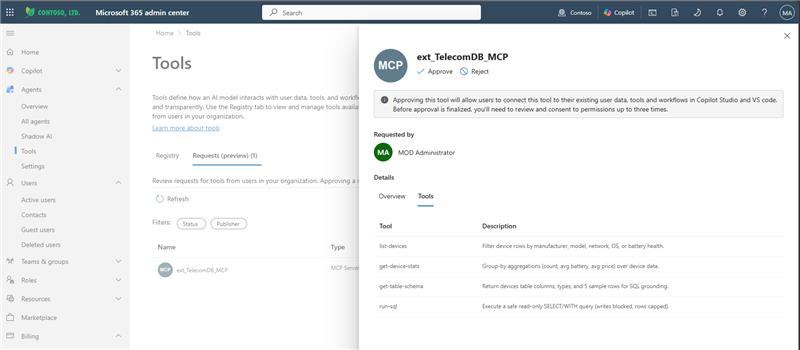
5.3 Review declared tools (Tools)
On the Tools tab, review the name and description of each tool declared by the server.
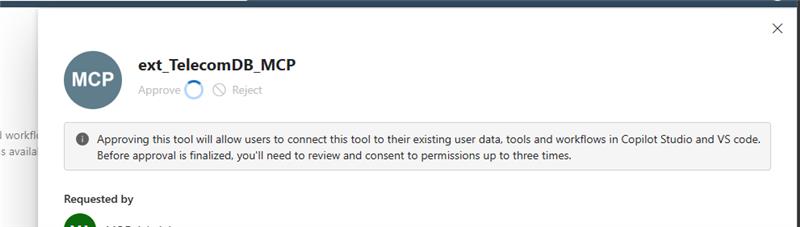
5.4 Approval and permission consent
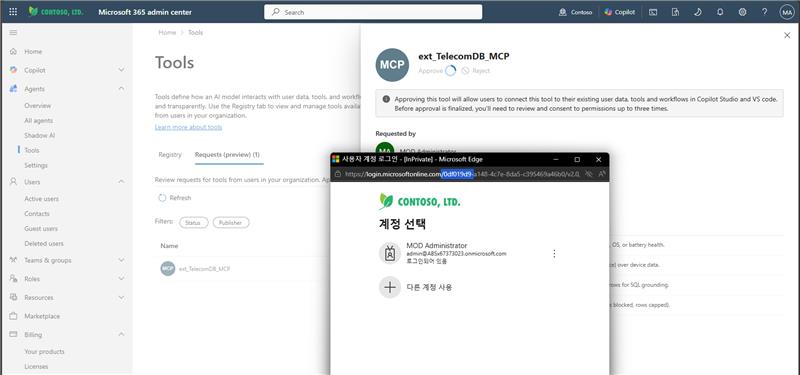
When you click Approve, the approval process starts. Before completing approval, you may need to review and consent to permissions up to three times.
Sign in with an admin account.
Review and consent to the requested permissions.
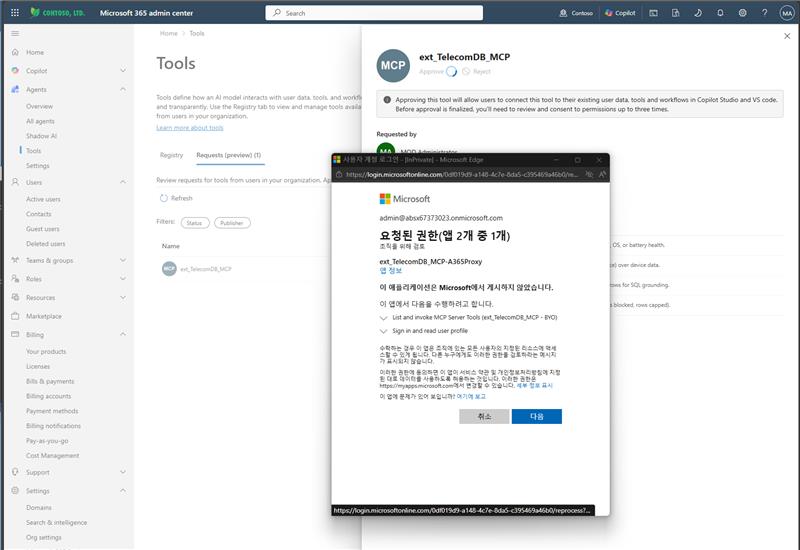
When approval is complete, the server appears in the Registry, and agent makers can use it from Copilot Studio. Propagation can take up to 30 minutes.
6. Use the approved server in Copilot Studio
After admin approval, makers can add the server to their agents.
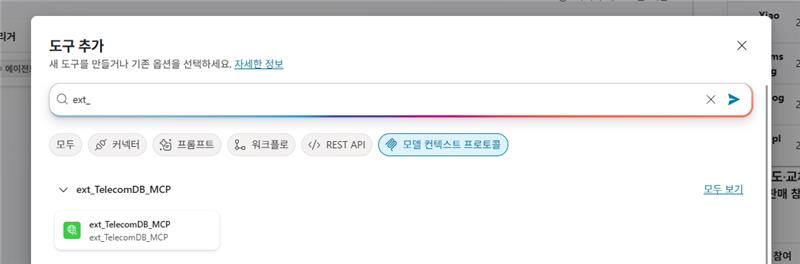
- Go to the agent’s Tools page → Add a tool.
- The registered MCP server appears in the tool catalog.
- Select the server and add it to the agent. No additional URL or authentication configuration is required.
7. Troubleshooting & things to watch when registering a server
Registration performs multiple steps in sequence. Identifying which step failed is the key to finding the cause. The table below summarizes common real-world errors.
7.1 Cause map by registration failure point
| Failure message (example) | Cause | Fix |
|---|---|---|
Scope '.default' not found on resource <appId> |
EntraOAuth with no delegated scope defined / .default used |
Add a delegated scope to the API app, then use api://<appId>/<scope> (section 3) |
Another object with the same value for property identifierUris already exists |
Re-registering the same server name → identifierUri conflict in the server-side proxy app | Clean up orphaned apps, then re-register with a new server name |
Short description exceeds the maximum length of 80 characters |
description (short description) exceeds 80 characters |
Shorten the description to 80 characters or fewer |
A server named '<name>' already exists |
Duplicate name at the registry (Dataverse) level | Change the server name and re-register |
Failed to create connector shared_<name>P ... BadRequest (HTTP 400) |
Connector creation failed — server naming rules, etc. | See section 7.3 below |
7.2 Things to watch when registering a server (checklist)
- ✅ Server name:
ext_prefix + 20 characters or fewer. Afterext_, alphanumeric camelCase without underscores or special characters is recommended. If the name contains an underscore,HTTP 400can occur during the connector creation step. - ✅ Description: 80 characters or fewer. Registration is rejected if it exceeds this limit.
- ✅ EntraOAuth: For
--remote-scopes, use a delegated scope actually defined in the API app (api://<appId>/access_as_user). Do not use.default. - ✅ Tool names: Must exactly match the names actually exposed by the remote server.
- ✅ Clean up orphaned apps before retrying: Even if registration fails, proxy Entra apps created by the CLI (
<name>-A365Proxy/-RemoteProxy/-PublicClients,<name> - BYO) are not rolled back automatically. Clean them up before retrying, or use a new server name. - ✅ BYO MCP does not support delete or republish (Preview). Choose the name carefully.
7.3 Diagnostic sequence for connector creation 400 errors
Failed to create connector ... BadRequest (HTTP 400) occurs late in registration, during the connector creation step. Based on hands-on validation, the following sequence is recommended for narrowing down the cause.
- Shorten the description to 80 characters or fewer (prerequisite).
- Retry with a name that removes underscores from the server name (for example,
ext_myMcp) — this combination resolved the issue in hands-on validation. - If it still fails, check connector remnants/policies in the target Power Platform environment.
Note: Hands-on validation confirmed that the server URL path (root
/vs/mcp) and DLP policy are unrelated to registration success or failure (registration succeeded even with DLP applied). Before assuming the cause is URL or DLP, check the name and description rules first.
7.4 CLI log location
Detailed registration steps and errors are written to CLI logs (per PC/user profile where the command was run). Success is quiet; only failures are logged in detail.
%LOCALAPPDATA%\Microsoft.Agents.A365.DevTools.Cli\logs\a365.develop-mcp.log
8. Tool quality evaluation (optional)
Before registration, you can evaluate the quality of tool definitions (names, descriptions, parameter schemas) with Agent 365 CLI.
a365 develop-mcp evaluate --server-url "http://localhost:3000/mcp"
This command performs semantic scoring with a locally installed coding-agent CLI (GitHub Copilot CLI or Claude Code) and generates a tool quality report (HTML/JSON). Tool schema data is not sent to Microsoft.
References
- Manage tools for agents in Microsoft 365 admin center — Overview of BYO MCP server registration, approval, and governance
- Add and manage tools (Agent 365 developer) — Tooling manifests and service principal setup
- Install the Agent 365 CLI — CLI installation
- Agent 365 tooling servers overview — Available MCP server catalog
- Configure a client application to access a web API (Entra) — Expose an API / delegated scopes
- Grant tenant-wide admin consent to an application (Entra) — Admin consent
- Microsoft Defender advanced hunting — Tool invocation monitoring