SPFx hands-on — build a dashboard web part that reads list data
Follow the full process of creating a SharePoint list, building an SPFx React dashboard web part that reads it, registering it in the App Catalog, and adding it to a page, with code.
▶ One-line summary — Create a list in a SharePoint site (UI), then build an SPFx React web part that reads that list and displays it as summary cards + a table. This article shows in code how to use PnPjs for lists in the same site and Graph for other M365 data, and covers App Catalog registration in detail.
This hands-on article follows SharePoint Framework (SPFx) overview and architecture.
0. Prerequisites (environment setup)
SPFx development starts with Node.js + three global CLI tools. Install and verify them in the following order.
0-1. Requirements
| Requirement | Purpose | Verification |
|---|---|---|
| Node.js LTS v22 | Runtime and build (SPFx 1.23.2 supports only Node 22) | node -v → v22.x |
Yeoman (yo) |
Project scaffolding tool | yo --version |
| SPFx Generator | SPFx project template | — |
| gulp-cli | Optional task runner | gulp -v |
| VS Code | Recommended editor | — |
| SharePoint | Site creation/management permissions + App Catalog access (admin) | — |
0-2. Installation commands
# 1) Node Check the version — must be v22.x
node -v          # → v22.x.x

# 2) Install the global CLI tools (Yeoman + SPFx generator + gulp)
npm install -g yo gulp-cli @microsoft/generator-sharepoint

# 3) Verify the installation
yo --version                              # Yeoman version
npm ls -g --depth=0 @microsoft/generator-sharepoint   # Verify the generator installation
The Node version is the most common pitfall. SPFx 1.23.2 supports only Node 22 LTS. With newer versions such as Node 24, scaffolding or builds may fail at the npm install step, so switch versions with nvm-windows.
nvm install 22.15.0
nvm use 22.15.0
node -v          # v22.15.0 Continue after verifying
If you do not have a development tenant, you can get a free development tenant through the Microsoft 365 Developer Program and use SharePoint Online + App Catalog.
1. Step A — create a list directly in the SharePoint site
Instead of using a provisioning script, create the list directly in the SharePoint UI. This is the most familiar approach in practice.
1-1. Create the list
- Target site → Settings (⚙) → Site contents → top + New → List.
- In the “How would you like to start?” dialog, select Blank list.
- Set the name to
Project Status→ Create.
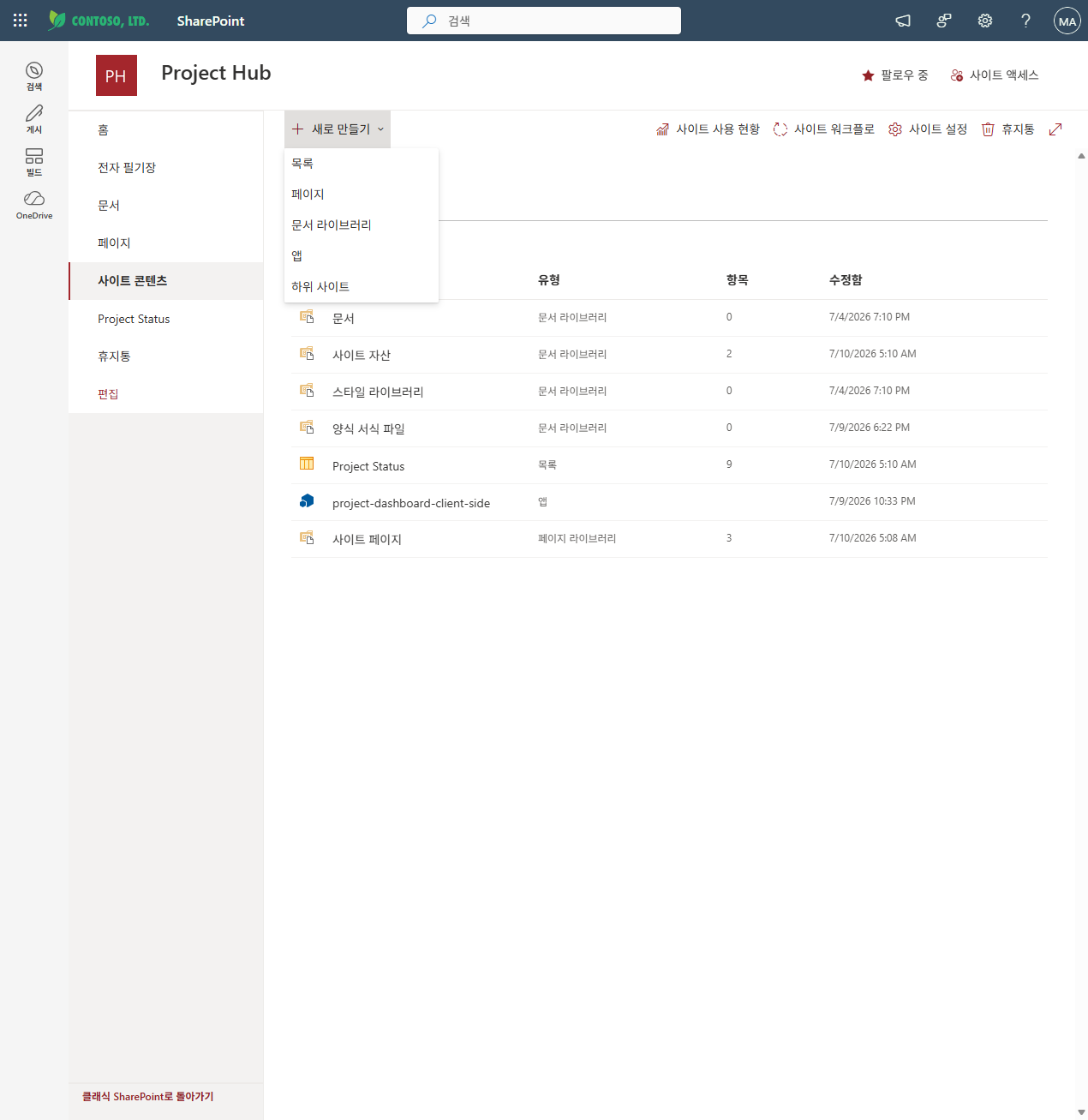
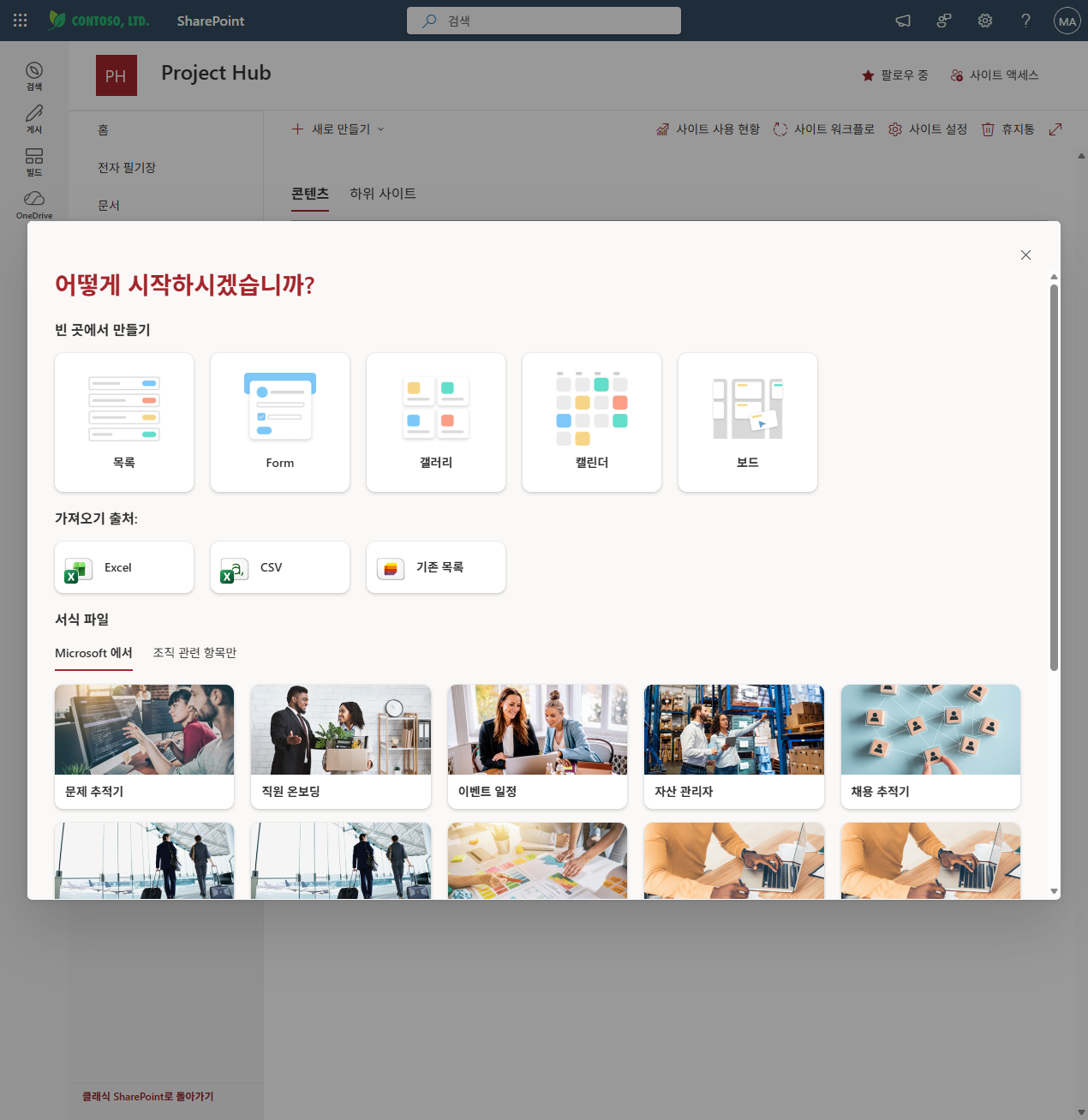
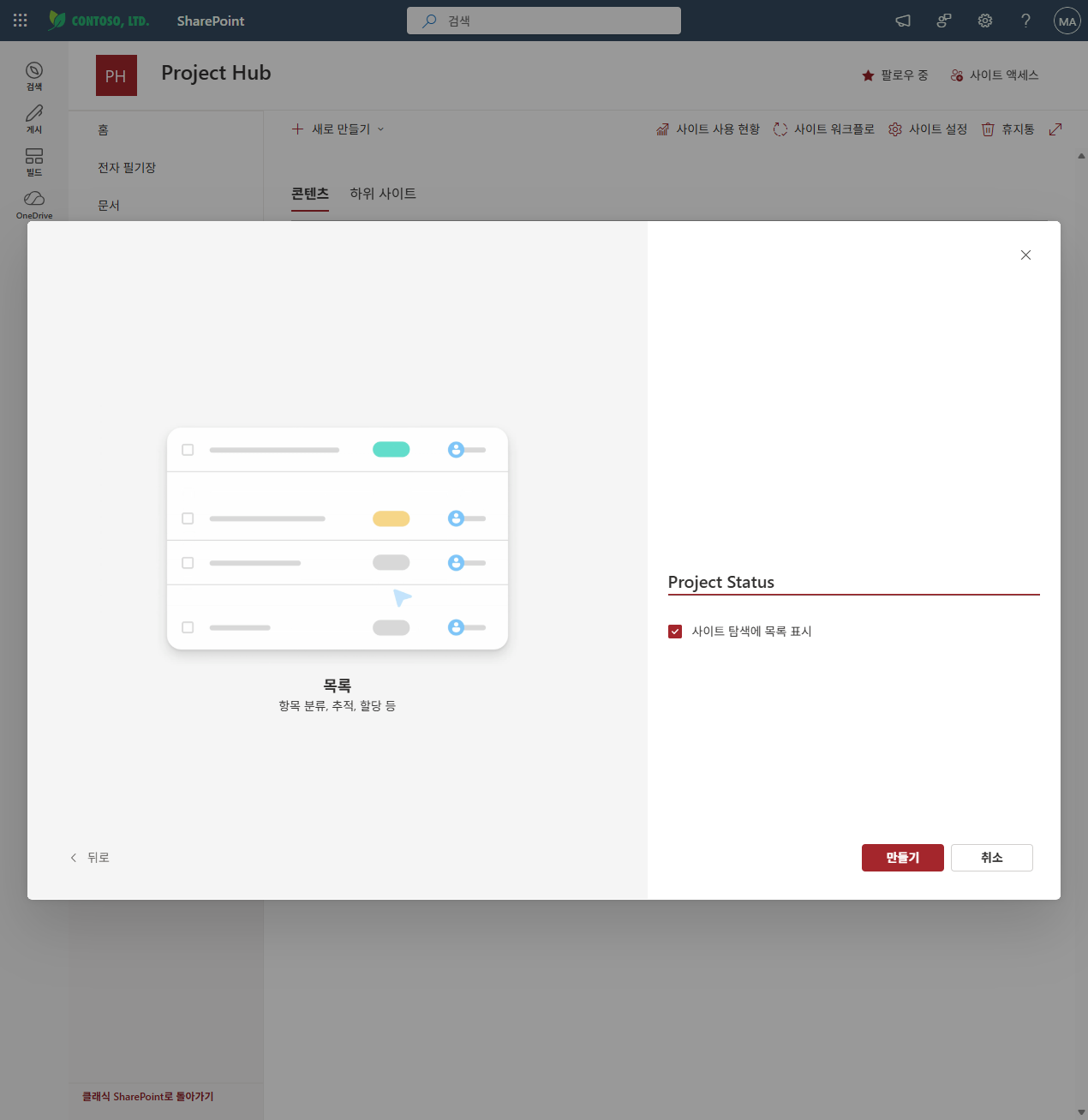
Project Status → Create1-2. Add columns
In addition to the default Title column (project name), use + Add column at the top of the list to create the following five columns. Because the internal names (fixed) must match the code, use the names in the table exactly.
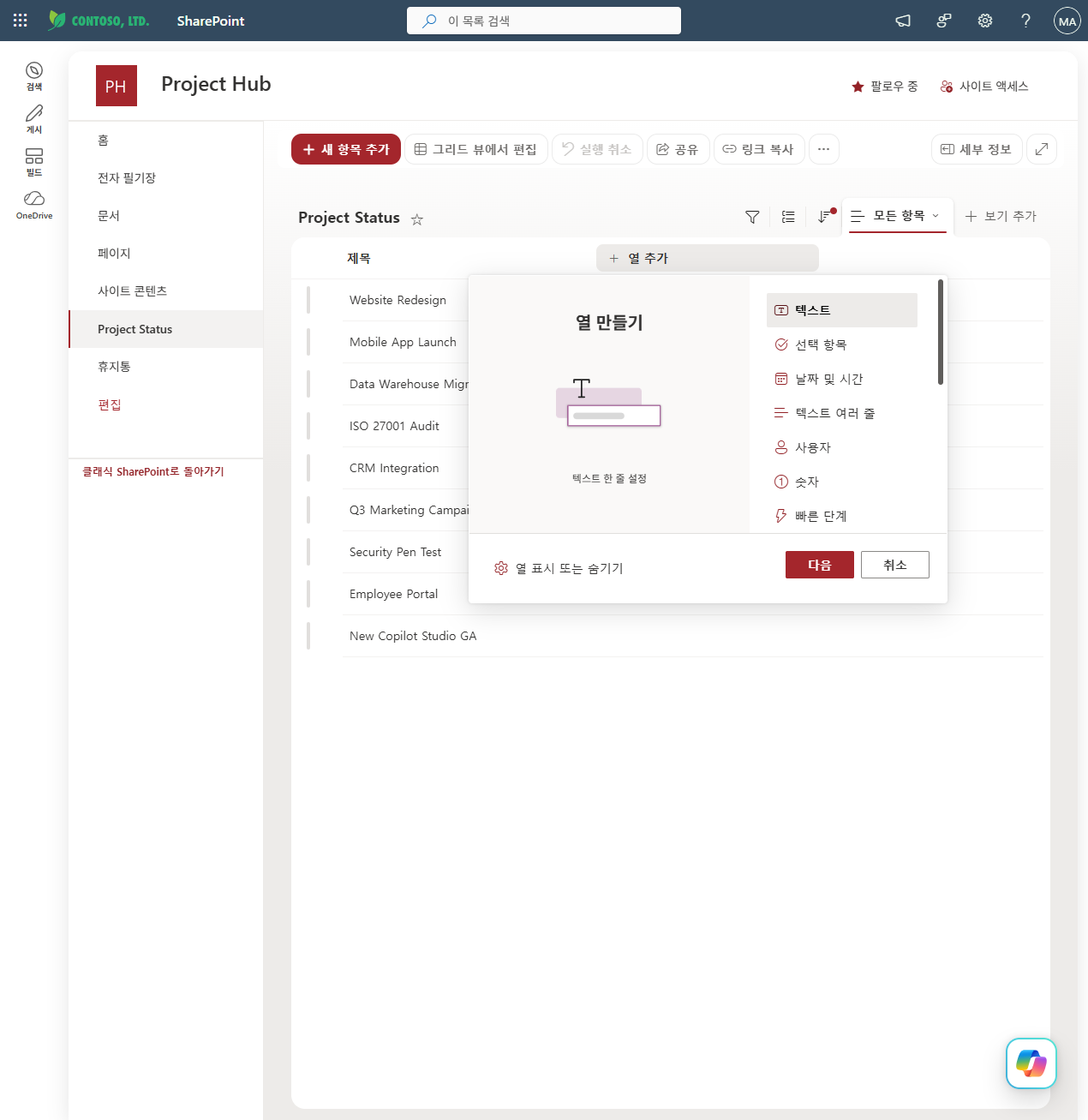
| Display name | Type | Internal name | Settings |
|---|---|---|---|
| Owner | Single line of text | Owner |
— |
| Status | Choice | PStatus |
Options: Not Started / In Progress / At Risk / Completed |
| Progress | Number | Progress |
0–100 |
| Due Date | Date | DueDate |
Date only |
| Notes | Multiple lines of text | Notes |
— |
The “display name” and “internal name” are different. SharePoint fixes the internal name based on the name used when a column is first created. For example, if you want the display name to be Status, first create it as PStatus, then change only the display name later. Code always reads lists by internal name (PStatus, DueDate, etc.). You can verify the internal name from the Field= value in the URL when you go to List settings → click the column.
1-3. Enter sample data
Fill a few rows using grid edit mode. For example:
| Title | Owner | PStatus | Progress | DueDate | Notes |
|---|---|---|---|---|---|
| Website Redesign | Alice Kim | In Progress | 65 | 2026-08-15 | CMS migration in progress |
| Mobile App Launch | Brian Park | At Risk | 40 | 2026-07-31 | iOS review delayed |
| CRM Integration | Alice Kim | Completed | 100 | 2026-06-30 | Reflected in production |
2. Step B — build the dashboard web part (core)
2-1. Scaffold the project
Run the Yeoman generator in an empty folder.
md project-dashboard; cd project-dashboard
yo @microsoft/sharepoint
Prompt responses:
| Question | Answer |
|---|---|
| Solution name | project-dashboard |
| Component to create | WebPart |
| Web part name | ProjectDashboard |
| Framework | React |
When generation is complete, install the data access library PnPjs.
npm install @pnp/sp --save
2-2. Web part entry point — add “list name” to the property pane
In src/webparts/projectDashboard/ProjectDashboardWebPart.ts, do two things: ① add a list name property, and ② pass context to the component (required for PnPjs initialization).
export interface IProjectDashboardWebPartProps {
  description: string;
  listName: string;               // ← Add: Name of the list to read
}

// render() pass listName and context to the component
const element: React.ReactElement<IProjectDashboardProps> = React.createElement(
  ProjectDashboard,
  {
    description: this.properties.description,
    listName: this.properties.listName,          // ← Add
    context: this.context                         // ← added for PnPjs initialization
  }
);

// Add a List Name field to the Property Pane
protected getPropertyPaneConfiguration(): IPropertyPaneConfiguration {
  return {
    pages: [{
      header: { description: strings.PropertyPaneDescription },
      groups: [{
        groupName: strings.BasicGroupName,
        groupFields: [
          PropertyPaneTextField('listName', { label: 'List name (display name)' })
        ]
      }]
    }]
  };
}
The props interface that the component receives, components/IProjectDashboardProps.ts:
import { WebPartContext } from '@microsoft/sp-webpart-base';

export interface IProjectDashboardProps {
  description: string;
  listName: string;
  context: WebPartContext;
}
2-3. Read a list in the same site — PnPjs (core)
components/ProjectDashboard.tsx. This is the part that references a list in the same site.
import * as React from 'react';
import { useState, useEffect, useCallback } from 'react';
import { spfi, SPFx } from '@pnp/sp';
import '@pnp/sp/webs';
import '@pnp/sp/lists';
import '@pnp/sp/items';
import styles from './ProjectDashboard.module.scss';
import { IProjectDashboardProps } from './IProjectDashboardProps';

interface IProject {
  Id: number; Title: string; Owner: string;
  PStatus: string; Progress: number; DueDate: string | null; Notes: string;
}

const ProjectDashboard: React.FC<IProjectDashboardProps> = (props) => {
  const { listName, context } = props;
  const [items, setItems] = useState<IProject[]>([]);
  const [loading, setLoading] = useState(false);
  const [error, setError] = useState('');

  const fetchItems = useCallback(async (): Promise<void> => {
    if (!listName) { setItems([]); return; }
    setLoading(true); setError('');
    try {
      // ★ Initialize PnPjs with the current site context → Access a list on the same site
      const sp = spfi().using(SPFx(context));
      const results: IProject[] = await sp.web.lists
        .getByTitle(listName)                            // ← Reference the list by name
        .items
        .select('Id','Title','Owner','PStatus','Progress','DueDate','Notes')
        .top(500)();
      setItems(results);
    } catch (e) {
      setError(`List "${listName}" could not be loaded. Check the name and permissions.`);
      console.error(e);
    } finally {
      setLoading(false);
    }
  }, [listName, context]);

  useEffect(() => { void fetchItems(); }, [fetchItems]);

  if (!listName) return <p className={styles.hint}>Enter the list name in the property pane.</p>;
  if (loading)   return <p className={styles.hint}>Loading…</p>;
  if (error)     return <p className={styles.error}>{error}</p>;

  // Aggregate
  const total = items.length;
  const completed = items.filter(i => i.PStatus === 'Completed').length;
  const inProgress = items.filter(i => i.PStatus === 'In Progress').length;
  const atRisk = items.filter(i => i.PStatus === 'At Risk').length;
  const avgProgress = total ? Math.round(items.reduce((s,i)=>s+(Number(i.Progress)||0),0)/total) : 0;

  return (
    <div className={styles.projectDashboard}>
      <h2 className={styles.title}>Project status · {listName} ({total})</h2>
      <div className={styles.cards}>
        <div className={styles.card}><div>In progress</div><div>{inProgress}</div></div>
        <div className={styles.card}><div>At risk</div><div>{atRisk}</div></div>
        <div className={styles.card}><div>Complete</div><div>{completed}</div></div>
        <div className={styles.card}><div>Average progress</div><div>{avgProgress}%</div></div>
      </div>
      <table className={styles.table}>
        <thead><tr><th>Project</th><th>Owner</th><th>Status</th><th>Progress</th><th>Due date</th></tr></thead>
        <tbody>
          {items.map(it => (
            <tr key={it.Id}>
              <td>{it.Title}</td><td>{it.Owner}</td><td>{it.PStatus}</td>
              <td>{Number(it.Progress)||0}%</td><td>{it.DueDate ? it.DueDate.substring(0,10) : '—'}</td>
            </tr>
          ))}
        </tbody>
      </table>
    </div>
  );
};

export default ProjectDashboard;
How it works — The key is the single line spfi().using(SPFx(context)). context (the web part context) contains the current site URL and the signed-in user’s token, so PnPjs reads lists in the current site with that user’s permissions without separate authentication. getByTitle(listName) finds the list by display name, and the fields in select(...) use the column internal names.
2-4. Core concepts for data connections — what you need to know
Before moving into the code, here are four concepts that explain how SPFx accesses data. Once you understand these, you will know “why there is no authentication code” and “how far access goes.”
① Context — the starting point for all data access
The this.context object that SPFx passes when a web part runs contains the current site information + signed-in user identity. Data calling tools (PnPjs, SPHttpClient, Graph) all operate by receiving this context.
context.pageContext.web.absoluteUrl— current site URL (for example,.../sites/ProjectHub)context.pageContext.user— current signed-in usercontext.spHttpClient/context.msGraphClientFactory— call clients with authentication built in
② Site and web — “whose” data is it?
SharePoint data is isolated by site (more precisely, web). sp.web.lists.getByTitle(...) means a list in the current site. To read a list in another site, you must either specify that site explicitly (Web(url) in PnPjs) or specify a site ID through Graph, which handles M365-wide data.
// Current site (default)
await sp.web.lists.getByTitle("Project Status").items();

// Explicitly target a different site (PnPjs)
import { Web } from "@pnp/sp/webs";
const otherWeb = Web([sp.web, "https://<tenant>.sharepoint.com/sites/OtherSite"]);
await otherWeb.lists.getByTitle("Tasks").items();
③ Automatic SSO — why there is no authentication code A web part runs inside the browser session of an already signed-in user. That means you do not need to issue or store tokens yourself; the framework automatically attaches the user’s token to each call. → Data is read within that user’s permission scope without a sign-in screen or consent popup. (If the user cannot see a list, code cannot see it either — permissions are tied to the user.)
④ Permission boundary — “same site” needs no approval; “outside the fence” needs admin approval
SharePoint data in the current site (REST/PnPjs) is accessed with only the user’s permissions, so no additional approval is required. In contrast, Microsoft Graph or an external AAD API uses organization-level permissions, so you must declare permissions in package-solution.json and the tenant admin must approve them before calls can be made (see 3-4).
Bottom line — SPFx data access defaults to “current site + current user.” context carries those two things, automatic SSO handles authentication, and only when you go outside that boundary (another site, M365-wide data, external APIs) do the method and approval requirements change.
2-5. What about other data? — comparing three approaches
If you need data other than a “same-site list,” the method changes.
| Data location | Method | Code entry point | Admin approval |
|---|---|---|---|
| Same-site list (this example) | PnPjs | spfi().using(SPFx(context)) |
Not required |
| Same site, without a library | SPHttpClient (built into SPFx) | context.spHttpClient.get(...) |
Not required |
| Other sites, Teams, users, mail, and other M365 data | Microsoft Graph | context.msGraphClientFactory.getClient('3') |
Required |
| External systems/custom backends | HttpClient / AAD-secured API | context.aadHttpClientFactory |
Depends |
① SPHttpClient — call same-site REST directly without a library
import { SPHttpClient, SPHttpClientResponse } from '@microsoft/sp-http';

const url = `${context.pageContext.web.absoluteUrl}`
  + `/_api/web/lists/getbytitle('Project Status')/items`
  + `?$select=Title,Owner,PStatus,Progress&$top=500`;
const res: SPHttpClientResponse = await context.spHttpClient.get(url, SPHttpClient.configurations.v1);
const json = await res.json();
const items = json.value;   // Array of list items
② Microsoft Graph — M365-wide data such as other sites/Teams/users
import { MSGraphClientV3 } from '@microsoft/sp-http';

const client: MSGraphClientV3 = await context.msGraphClientFactory.getClient('3');
// e.g.: List items from another site
const result = await client.api('/sites/{site-id}/lists/{list-id}/items').expand('fields').get();
// e.g.: My profile, my recent files, team members and so on follow the same pattern
To use Graph, declare permissions in
webApiPermissionRequestsinconfig/package-solution.json, and have the tenant admin approve them in SharePoint admin center → Advanced → API access.
③ External AAD-secured API
const client = await context.aadHttpClientFactory.getClient('<AAD-App-Client-Id>');
const res = await client.get('https://api.contoso.com/orders', AadHttpClient.configurations.v1);
Summary: For same-site lists, PnPjs is the most concise and requires no approval. The moment you leave the site boundary, you move to Graph (+ admin approval).
2-6. Local preview → build → package
npm run start                       # Preview in the hosted workbench.aspx
npm run build                       # Production build + Packaging
# → sharepoint/solution/project-dashboard.sppkg Create
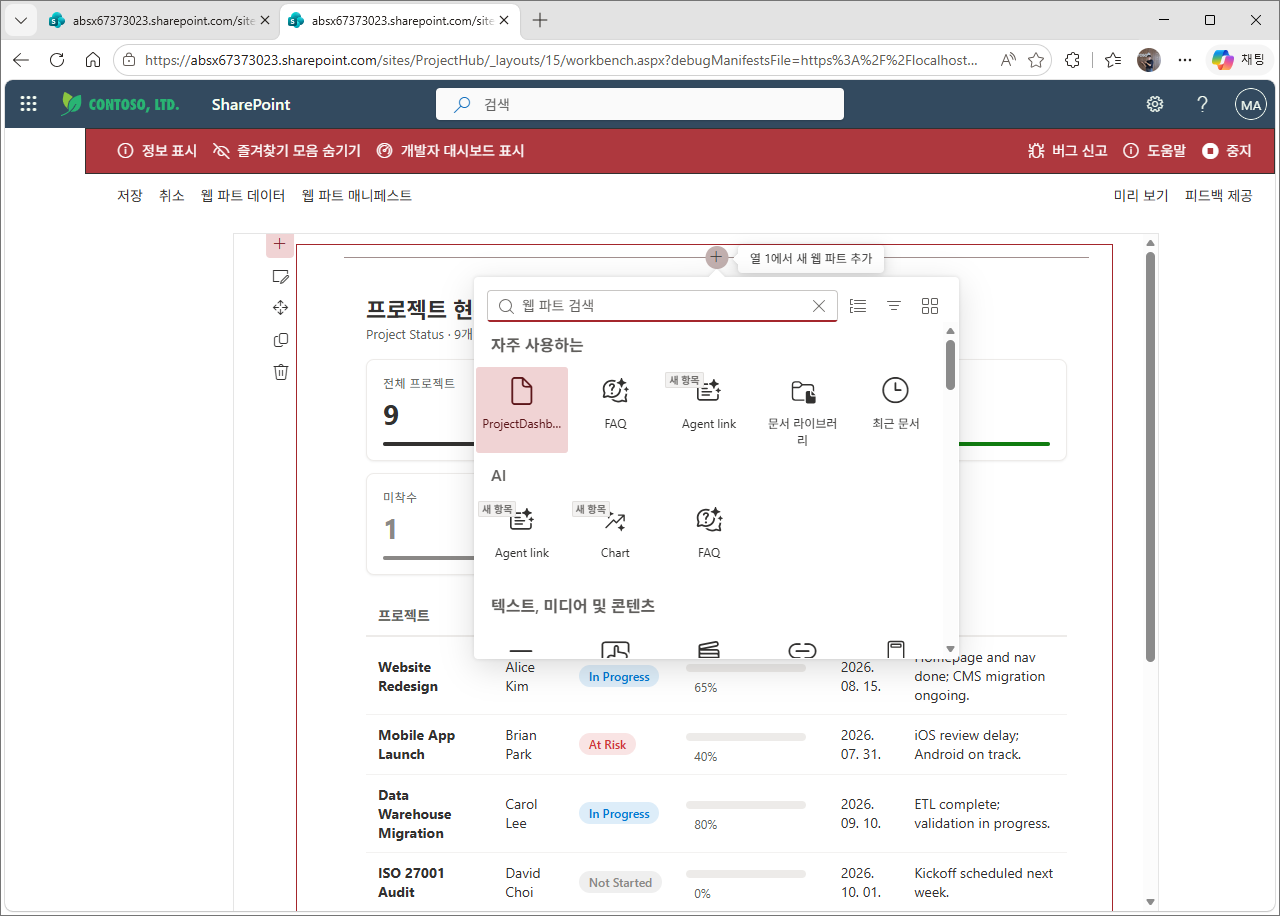
Lists cannot be read in the local Workbench. The localhost Workbench page is not a SharePoint site, so the user context is not injected. Always test list queries in the hosted https://<tenant>.sharepoint.com/sites/<site>/_layouts/15/workbench.aspx.
3. Step C — register and deploy in the App Catalog (details)
An .sppkg is the deployment package that contains the web part. You must upload it to the tenant App Catalog before sites can use it.
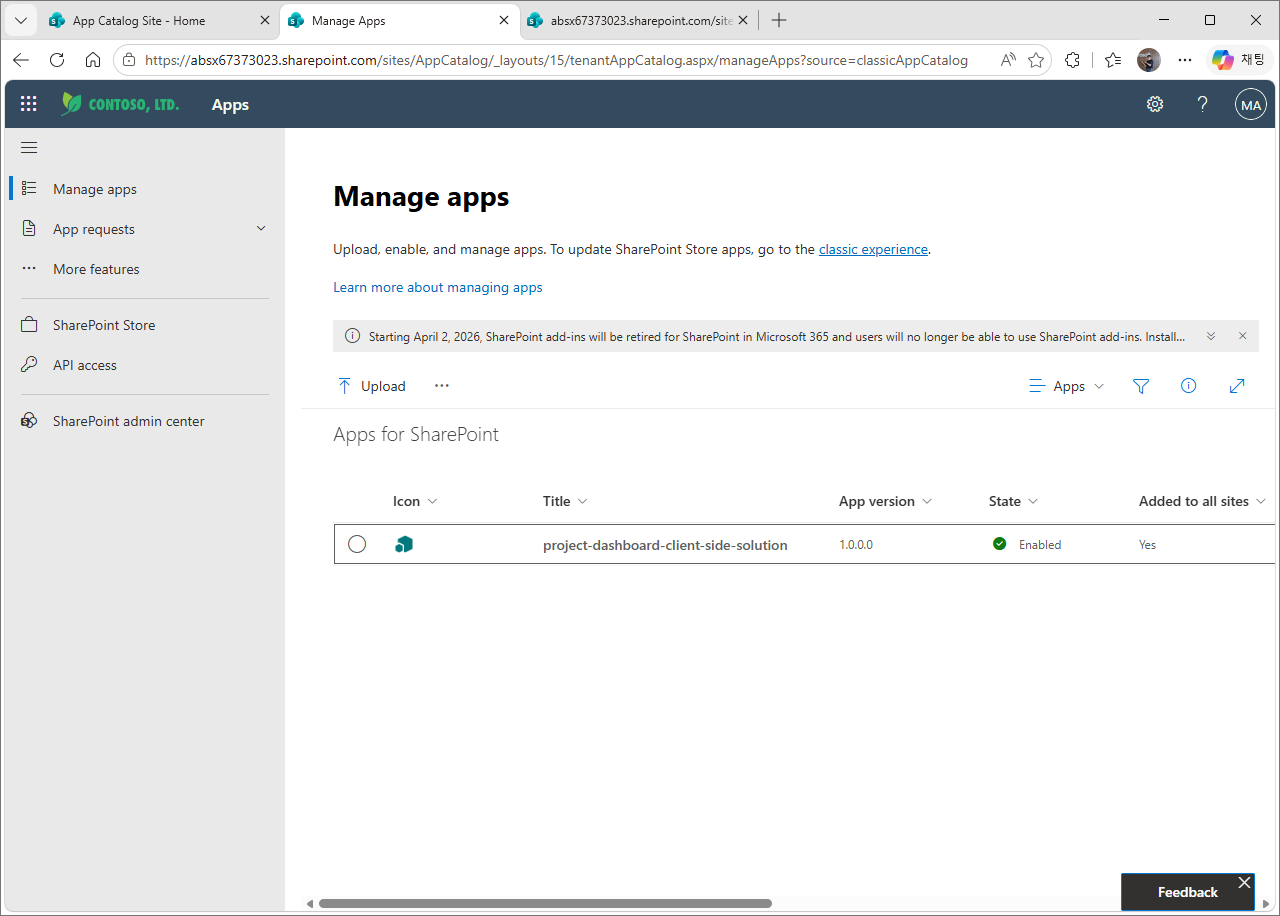
UI baseline for this hands-on — the new “Manage apps” page — When you open the App Catalog site (/sites/appcatalog), a banner appears at the top: “A newer version of this page is now available. Try the new Manage Apps page”. This hands-on uses that new Manage Apps UI (_layouts/15/tenantAppCatalog.aspx/manageApps). You can also upload through the classic library (Apps for SharePoint), and that screen is shown below as well.
3-1. Build the .sppkg
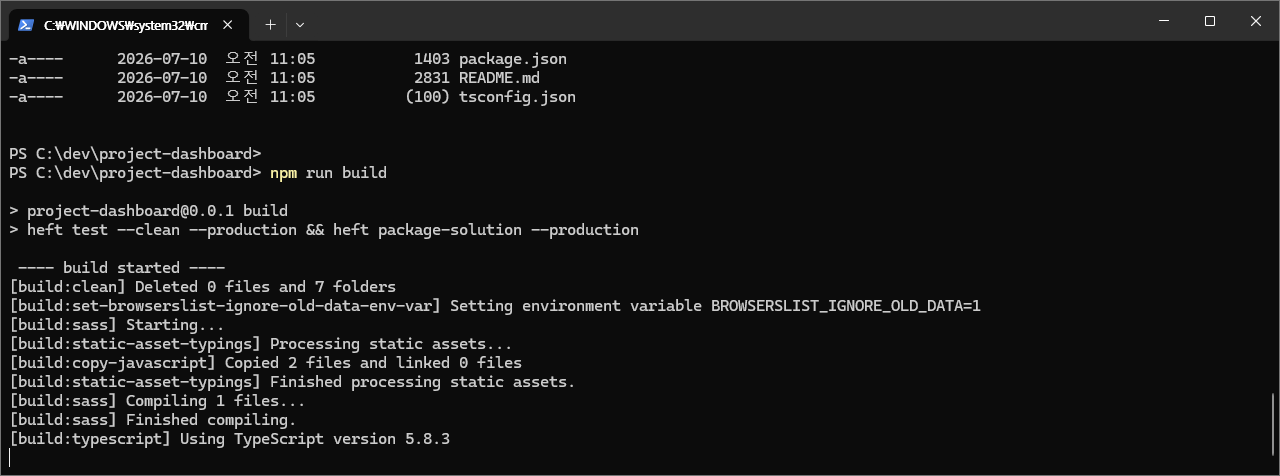
First, build the package for production deployment.
cd project-dashboard
npm run build        # = heft test --production && heft package-solution --production
# Output: sharepoint/solution/project-dashboard.sppkg
3-2. Open the App Catalog and upload the .sppkg
- Open
https://<tenant>.sharepoint.com/sites/appcatalog. - Use the “Try the new Manage Apps page” banner at the top to enter the new UI (or use Apps for SharePoint on the left).
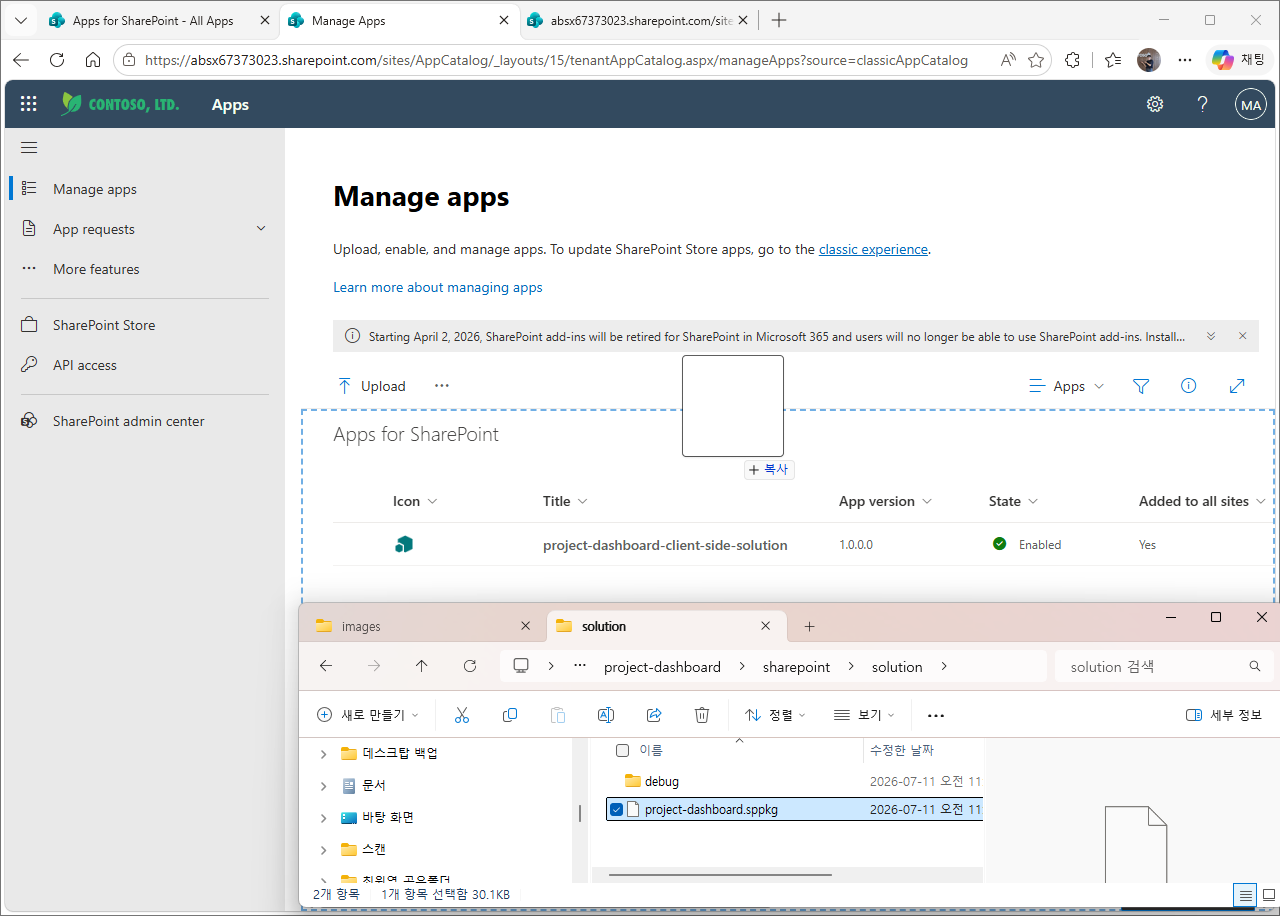
- Click Upload, or drag
sharepoint/solution/project-dashboard.sppkgto upload it.
3-3. Enable the app and deploy
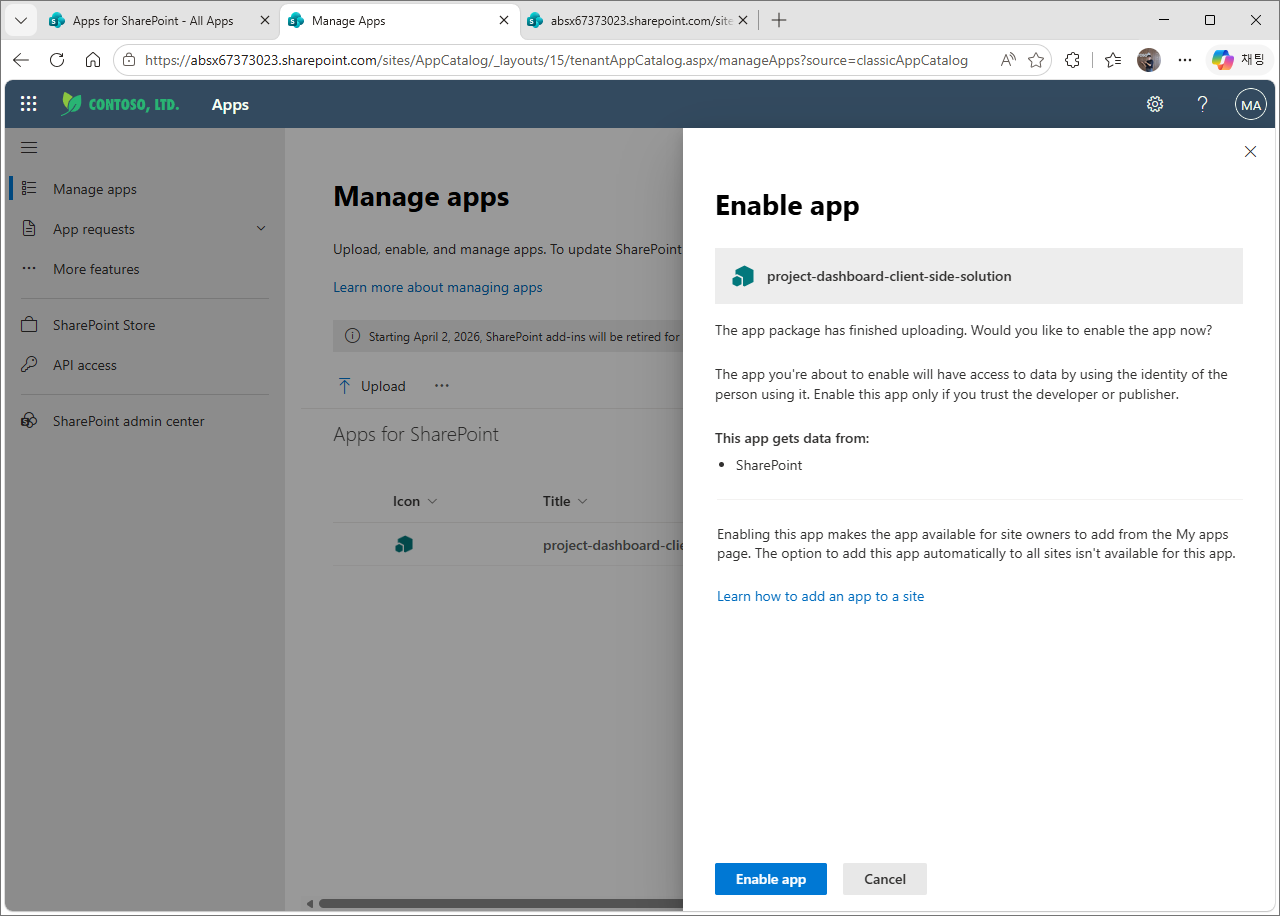
After upload completes, the “Enable app” panel appears.
- “This app gets data from: SharePoint” — shows the data source this app accesses (SharePoint, because it only reads same-site lists with PnPjs).
- Guidance to enable the app only when you trust the developer/publisher.
- Click [Enable app].
When enabling is complete, the app’s State changes to “Enabled” (green check) in the list.
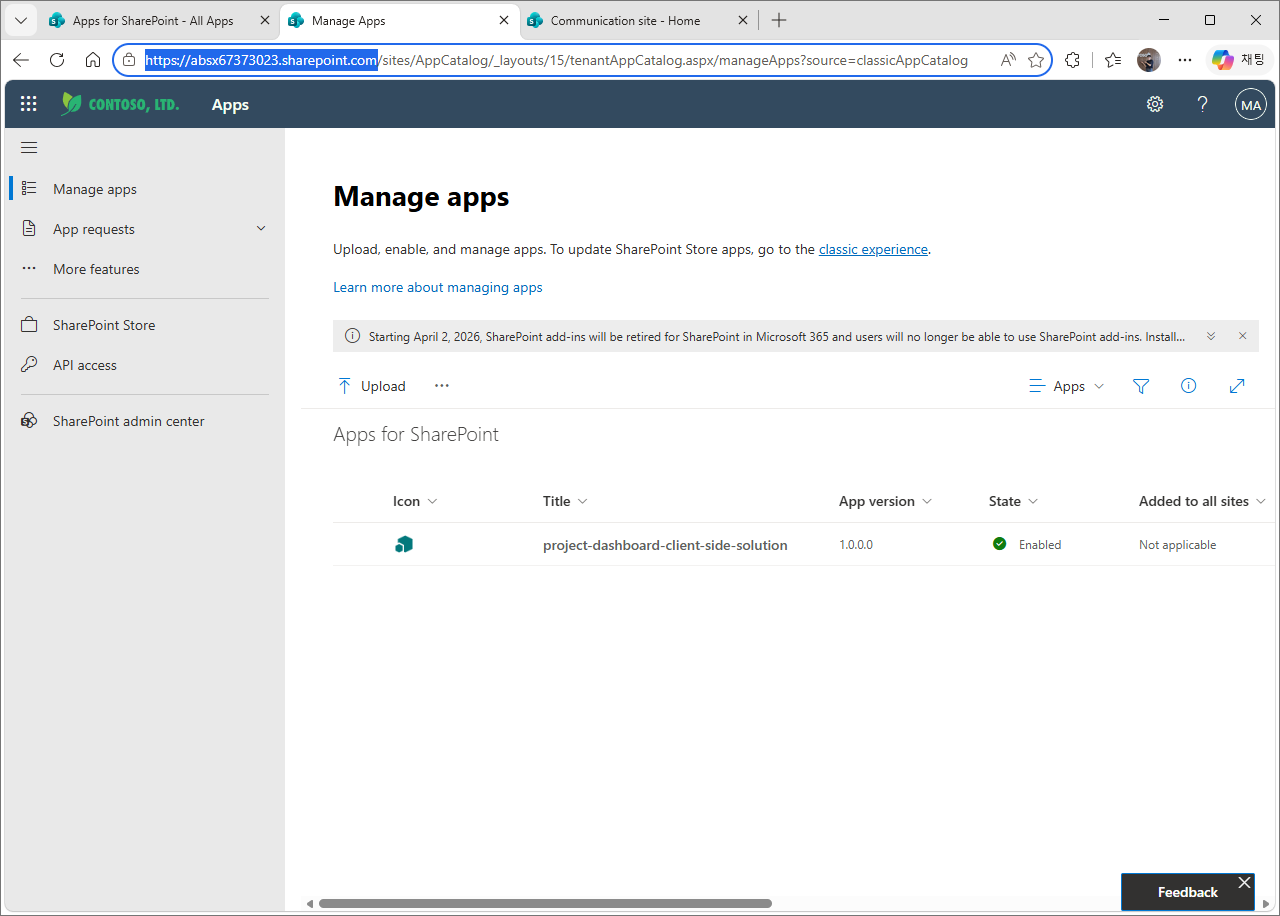
“Added to all sites” column — In the new UI, whether the “automatically add to all sites” option is supported when enabling an app depends on the solution setting (skipFeatureDeployment). This example adds the app individually on each site (column value Not applicable). If you need automatic organization-wide deployment, adjust the deployment options in package-solution.json.
3-4. API access approval (only if you use Graph/external APIs)
This example web part reads only the same site through PnPjs, so this step is not required. However, for a solution that declares Graph or an external AAD API:
- SharePoint admin center → Advanced → API access (or API access on the left in the new Manage apps UI).
- Select the pending permission request → Approve.
Update deployment — To modify code and deploy a new version, increase the version in package-solution.json, run npm run build again, upload the new .sppkg to the same library as an overwrite, and deploy. (If only the data changes, redeployment is not required — see Step 4.)
If you do not have an App Catalog yet (first time only) — Create an App Catalog site from SharePoint admin center → More features → Apps. A few minutes after creation, https://<tenant>.sharepoint.com/sites/appcatalog will be available.
4. Step D — add the web part to a site page
- Target site → Settings (⚙) → Add an app → Add
project-dashboard(if you chose organization-wide deployment, it may already be available). - Edit the page → on the canvas, click + (add web part) → search for and insert
project-dashboard. - Click the web part pencil (properties) → enter
Project Statusin List name. - Publish.
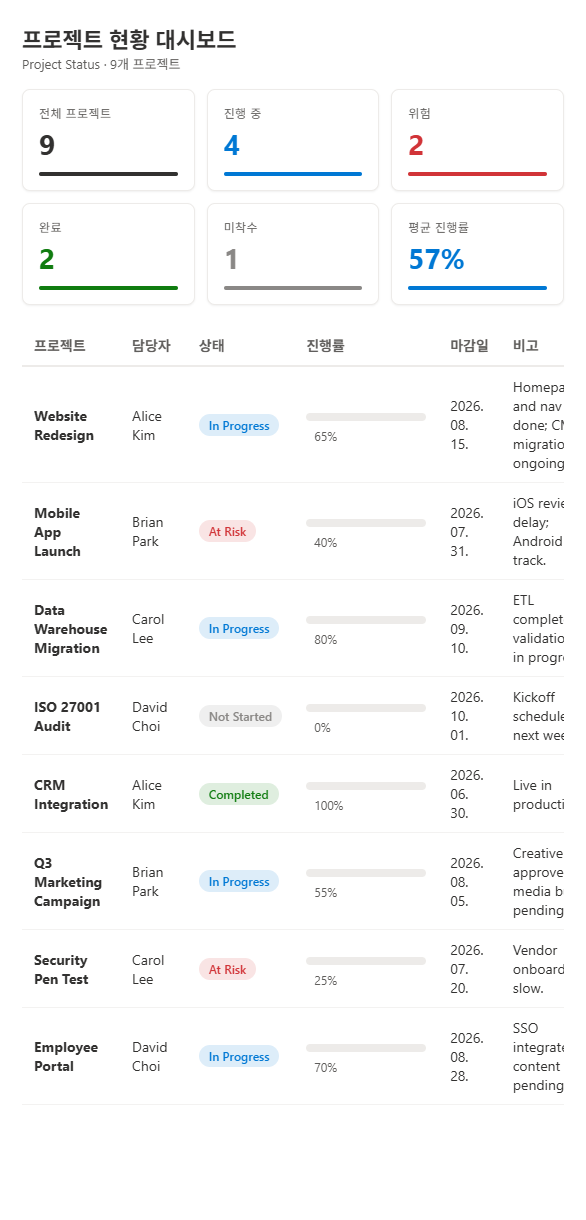
Do I need to redeploy when the data changes? No. The web part (code) and the list (data) are separate. The dashboard calls the list in real time whenever the page opens, so the latest values appear with just a refresh. Rebuild and redeploy are required only when code changes.
5. Beyond dashboards — what you can do with SPFx
A web part (dashboard) is only one type of SPFx component. SPFx can also customize other areas of SharePoint through Extensions and ACE. The following demos show what screens each type can actually build.
5-1. Application Customizer — inject areas at the top/bottom of a page
Renders custom UI in the page’s Top and Bottom placeholders. Use it for elements that appear consistently across all pages, such as company-wide announcement banners or global footers.
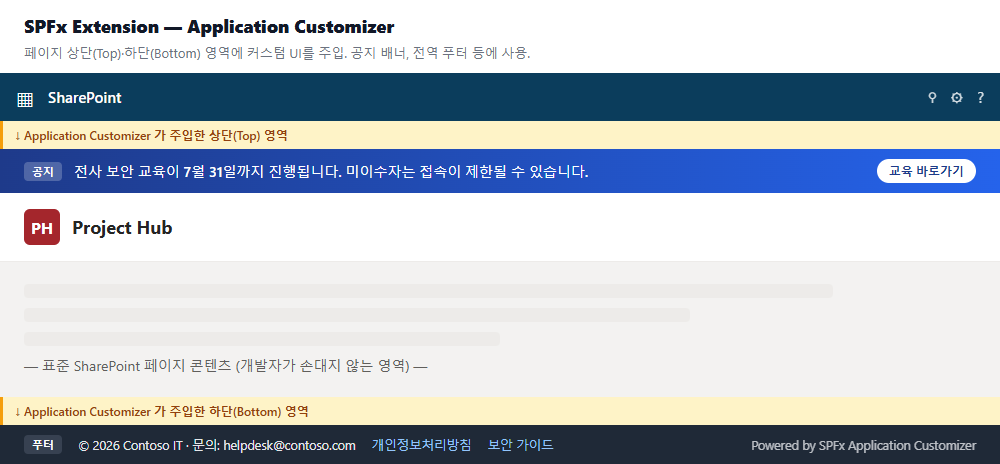
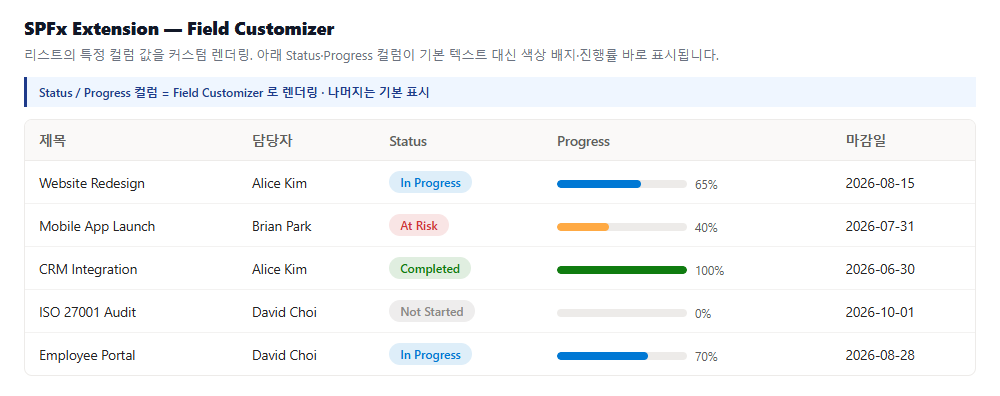
5-2. Field Customizer — custom rendering for list columns
Renders the value of a specific list column as a colored badge, progress bar, or similar UI instead of default text. Use it to improve the list screen itself (without a dashboard web part).
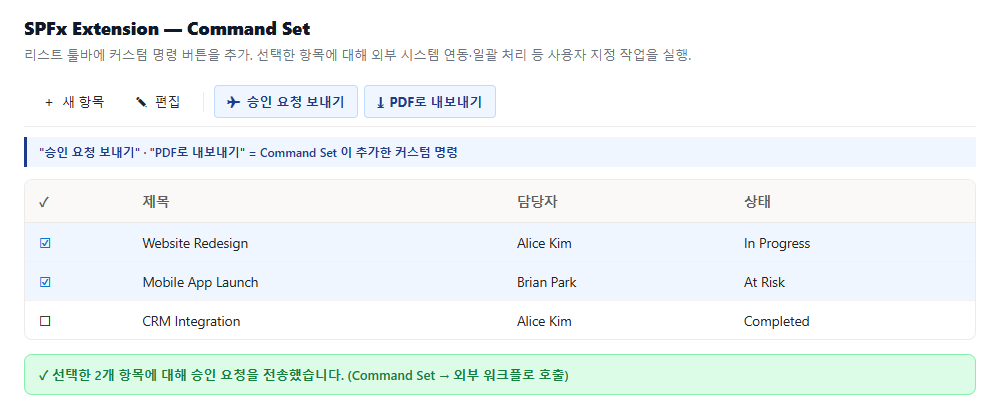
5-3. Command Set — custom commands in the list toolbar
Adds custom command buttons to the list toolbar. Run custom actions such as external system integration, approval requests, or batch processing for selected items.
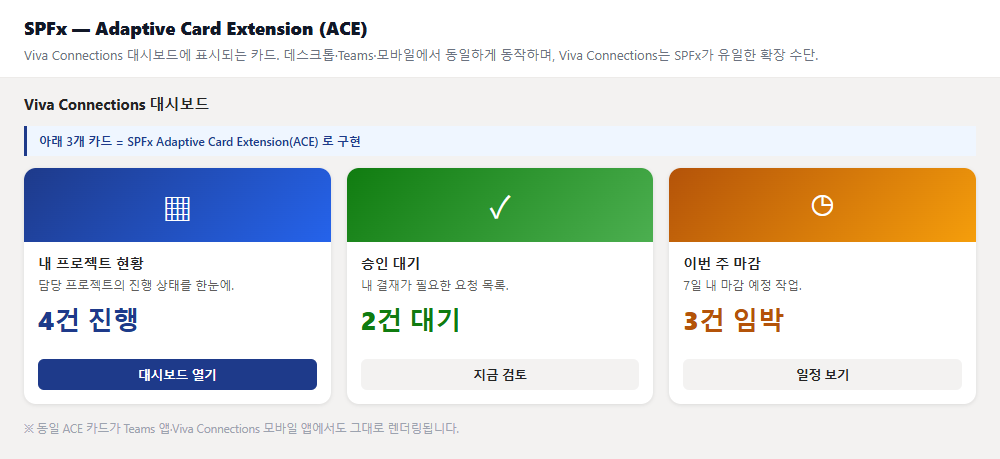
5-4. Adaptive Card Extension (ACE) — Viva Connections cards
These are cards shown in the Viva Connections dashboard. They work consistently across desktop, Teams, and mobile, and SPFx is the only extension mechanism for Viva Connections.
Common ground — All four types above and web parts use the same SPFx project structure, build process, and App Catalog deployment pipeline. When scaffolding with yo @microsoft/sharepoint, you only choose a different component type (WebPart / Extension → Application Customizer, Field Customizer, Command Set / ACE). In other words, if you can build the dashboard in this article, you can extend the others in the same way.
5-5. Practical reference — community SPFx samples
Before building from scratch, it is faster to refer to more than 400 validated SPFx samples published by the Microsoft 365 PnP community. These are representative samples frequently used in real projects (all open source and ready to clone and build).
| Sample | What it does | Techniques to reference |
|---|---|---|
| Organization Chart | Draws an organization chart from a specific user and supports up/down navigation | Query org relationships with Graph |
| Calendar | Displays list-based events in a calendar (month/week/year), with category colors + permission checks | List CRUD (an extension of this dashboard) |
| Images & Videos Carousel | Lazy-loads images and videos from a picture library into a carousel | Graph + PnPjs together, lazy loading |
| Using PnPJS with Microsoft Graph | Calls Microsoft Graph through PnPjs to show Entra group lists | PnPjs + Graph integration pattern |
| Birthdays | Reads a “Birthdays” list at the tenant root to show upcoming birthdays | List query + optional Azure Function sync |
Tips for using samples
- Full gallery: SharePoint Framework samples (web parts) · extension samples (Extension/ACE)
- Always check each sample README’s compatibility badge (SPFx version · Node version). For example, Organization Chart is based on SPFx 1.22.1 + Node 22. If the Node version does not match, the build will fail (see Troubleshooting 7-3).
- The flow after cloning —
npm install→npm run start(Workbench preview) →npm run build(packaging) — is the same as in this article.
6. Reuse — add it to other department sites
If the .sppkg is deployed organization-wide, a department site owner can use it without rewriting code by simply ① inserting the web part on a page → ② specifying the list name → ③ publishing.
⚠️ However, that site must also have a list with the same structure (the columns from Step A) for data to appear. If it does not, specify the actual list name on that site in the property pane.
7. Troubleshooting — real issues and fixes
These are the issues encountered while setting up the development environment for the first time. Most occur during the environment setup stage.
7-1. The web part does not appear in the Workbench toolbox
Symptom
“Your web part will not appear in the toolbox. Please make sure that ‘gulp serve’ or ‘heft start’ is running in a web part project.”
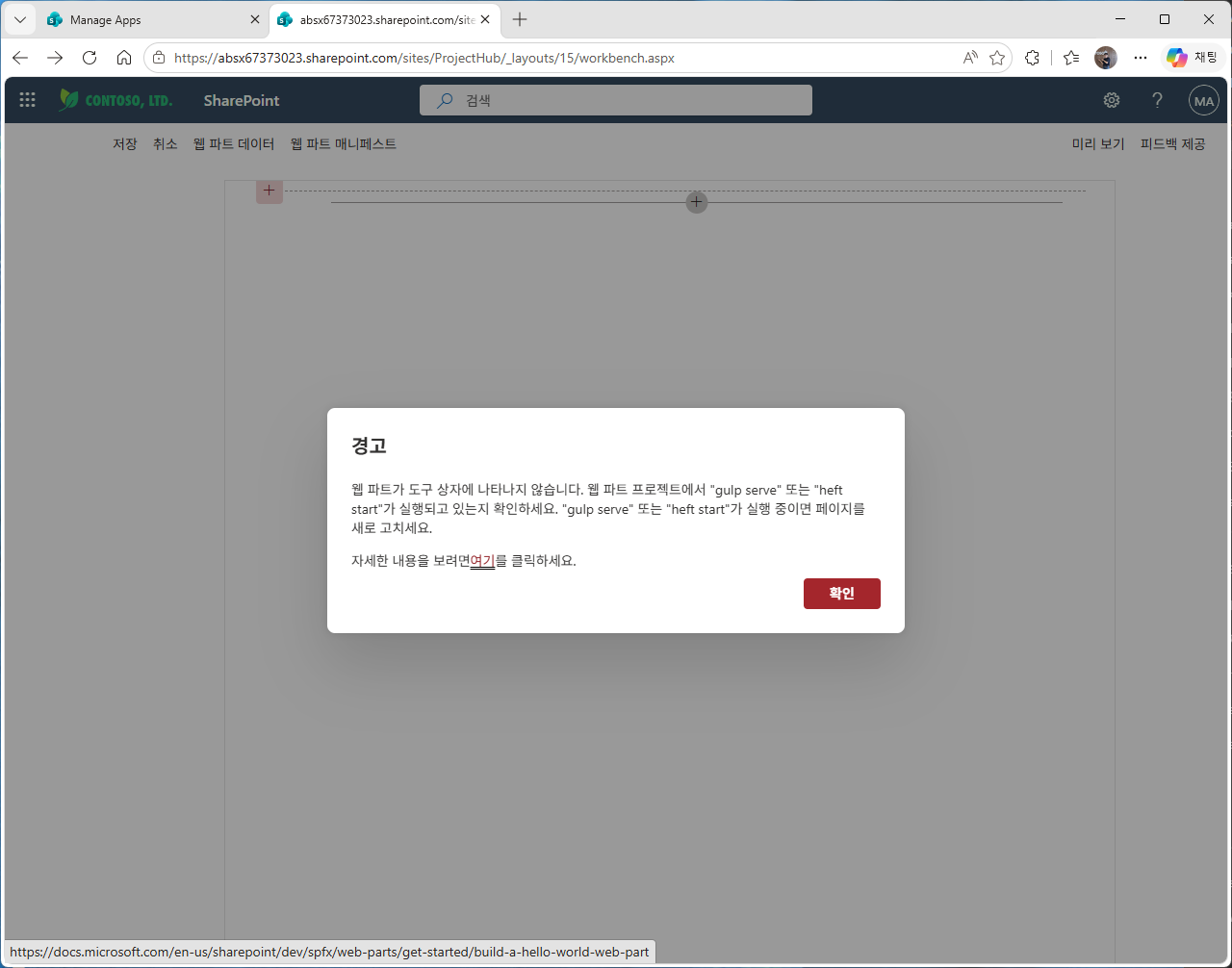
Cause — The hosted Workbench (workbench.aspx) shows the web part in the toolbox only when the local development server is serving the web part manifest from localhost. If the development server is stopped, this error appears.
Fix — Start the development server in the project folder, then refresh the Workbench.
npm run start # = heft start (keep this window open)
When the server is running at https://localhost:4321, refresh the Workbench page → the web part appears in the + (add web part) list.
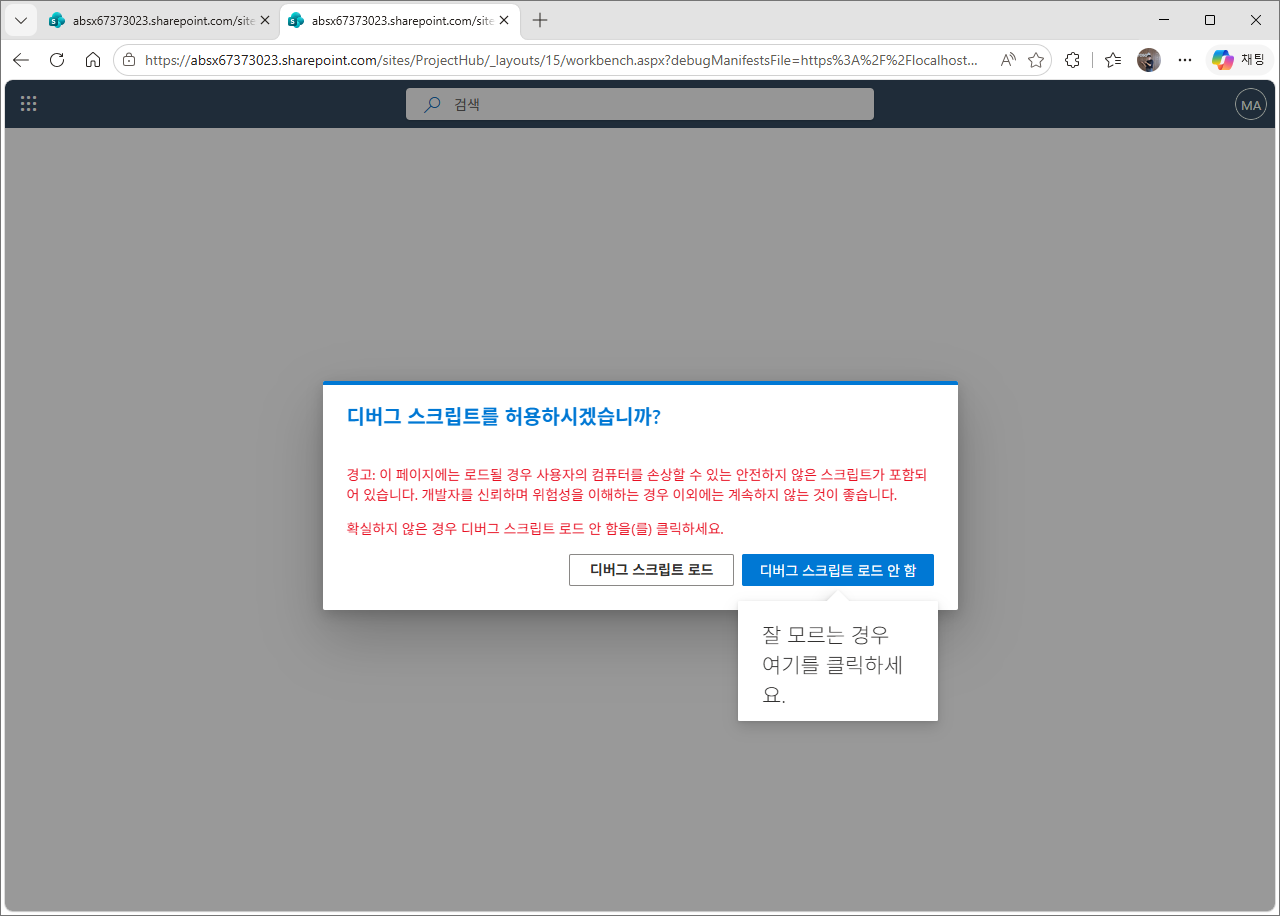
“Do you want to allow debug scripts?” dialog — When local scripts are loaded from the development server, the security dialog below appears. You must click “Load debug scripts” (left) for the web part to appear in the toolbox. If you click “Don’t load”, the local web part will not load.
7-2. The gulp command does not work (Heft project)
Symptom — Running gulp serve / gulp trust-dev-cert says the command cannot be found.
Cause — Starting with SPFx v1.22, the toolchain switched from gulp to Heft (RushStack). v1.22+ projects do not have gulpfile.js, and gulp is not installed. This is easy to confuse because older documentation and blog posts on the internet use gulp commands.
Check which type your project is: look at scripts in package.json.
heft start/heft build→ Heft-based (v1.22+)gulp serve/gulp bundle→ gulp-based (v1.21 or earlier)
Fix — Replace them with Heft commands.
| Purpose | gulp (old way) | Heft (v1.22+) |
|---|---|---|
| Development server | gulp serve |
npm run start (= heft start) |
| Trust certificate | gulp trust-dev-cert |
npx heft trust-dev-cert |
| Build | gulp bundle --ship |
npm run build |
| Package | gulp package-solution --ship |
heft package-solution --production |
7-3. Build/install fails because the Node version does not match
Symptom — npm install or heft fails for no obvious reason.
Cause — Each SPFx version supports only specific Node LTS versions (for example, v1.23 supports Node 22). If a newer version such as Node 24 is installed on the system, scaffolding, install, and build can break.
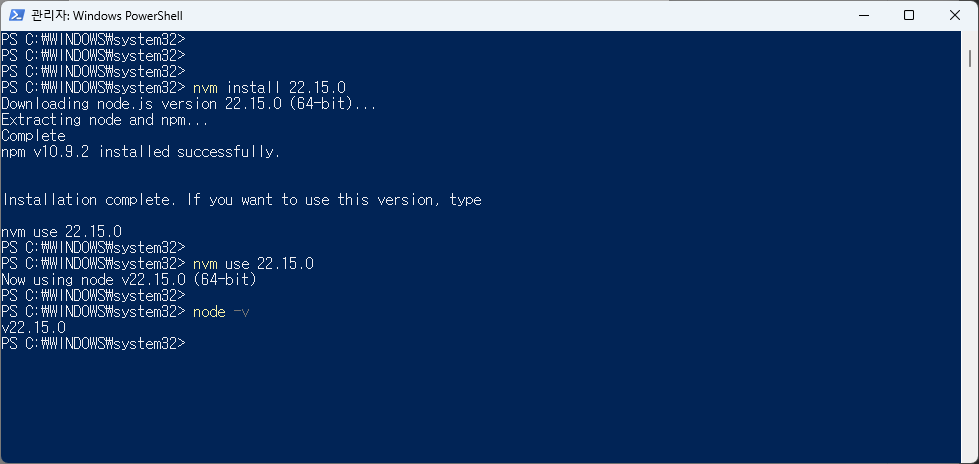
Fix — Switch to a supported version with nvm-windows.
# Requires an elevated PowerShell (nvm updates the C:\Program Files\nodejs symbolic link)
nvm install 22.15.0
nvm use 22.15.0
node -v        # verify v22.15.0
nvm-windows requires administrator privileges to switch versions. In a normal window,
nvm usemay fail silently.
7-4. npm install — ETARGET: cannot find a specific package version
Symptom
npm error code ETARGETNo matching version found for @jsonjoy.com/fs-core@4.64.0.
Cause — npm is pointing to an internal proxy/mirror registry, and the latest version (for example, 4.64.0) has not yet synchronized to that mirror. It exists in the official npm registry but not in the proxy, causing this error. (Check with npm config get registry — the official registry is https://registry.npmjs.org/.)
Fix — Use the official registry for this installation.
# Clean the lockfile and modules, then reinstall from the official registry
Remove-Item node_modules -Recurse -Force -ErrorAction SilentlyContinue
Remove-Item package-lock.json -Force -ErrorAction SilentlyContinue
npm install --registry https://registry.npmjs.org/
To make it project-specific, create a .npmrc file in the folder and add one line: registry=https://registry.npmjs.org/.
7-5. npm install — EPERM: file lock (OneDrive)
Symptom — During installation, cleanup of node_modules fails with EPERM: operation not permitted, rmdir ....
Cause — The project is inside a OneDrive sync folder, so OneDrive locks files while npm tries to delete or move them.
Fix
- Pause OneDrive (OneDrive icon in the taskbar → Pause syncing) and try again, or
- Move the project outside OneDrive (for example,
C:\dev\) for development.
7-6. UNKNOWN read error when running heft/node (OneDrive cloud-only files)
Symptom
Error: UNKNOWN: unknown error, read(errno: -4094,syscall: 'read') The run dies immediately from thenpx heft ...stack throughreadFileSync→defaultLoadImpl.
Cause — Some files inside node_modules were changed by OneDrive into “cloud-only” (offline placeholder) files, so their actual contents are not local. Node fails the moment it tries to require and read them. (The root cause is OneDrive uploading tens of thousands of module files in the background after npm install and then removing the local content.)
Fix (recommended) — move the project outside OneDrive
New-Item -ItemType Directory -Force -Path "C:\dev"
# node_modules copy without it and install fresh in the new location
robocopy "<OneDrivePath>\project-dashboard" "C:\dev\project-dashboard" /E /XD node_modules
cd C:\dev\project-dashboard
npm install --registry https://registry.npmjs.org/
npx heft trust-dev-cert
npm run start
Fix (if you continue in OneDrive)
- In File Explorer, right-click the project folder → select “Always keep on this device” (pin files locally), and pause OneDrive syncing while developing.
# node_modules mark it as pinned locally
attrib +P /S /D node_modules\*.*
Strong recommendation — SPFx development creates tens of thousands of files in node_modules, which does not work well with OneDrive sync folders (repeated mmap failures, EPERM, and placeholder reads). For stable development, keep the project outside OneDrive (C:\dev\, etc.).
7-7. Build error Cannot find module '@pnp/sp' (PnPjs not installed)
Symptom
(TS2307) Cannot find module '@pnp/sp' or its corresponding type declarations.webpack:Module not found: Error: Can't resolve '@pnp/sp'(same for webs/lists/items)
Cause — PnPjs (@pnp/sp), used for data calls, is not installed. Yeoman scaffolding does not add PnPjs automatically, so you must install it separately. In particular, if package.json dependencies do not include @pnp/sp but your code uses import { spfi } from '@pnp/sp', this error occurs.
Fix — Install PnPjs. If heft start is running in watch mode, it will automatically recompile after installation.
npm install @pnp/sp --save
# (if a corporate proxy blocks it) npm install @pnp/sp --save --registry https://registry.npmjs.org/
After installation, it is working normally when you see Found 0 errors + webpack compiled successfully.
Tip — First check whether @pnp/sp is included in dependencies in package.json. When sharing the project with teammates, if this dependency is missing, compilation will still break after npm install. Installing with --save records it in package.json and prevents recurrence.