SharePoint Framework (SPFx) overview and architecture
A practical overview of what SPFx is, when to use it, and how its architecture works — from client-side execution, automatic SSO, and data calls to licensing and costs.
▶ One-line summary — SPFx is Microsoft’s official web part and page development framework for client-side extensions to SharePoint (+ Teams + Viva). Without server code, it calls list and Graph data directly using the signed-in user’s context + automatic SSO.
1. What is SharePoint Framework (SPFx)?
SharePoint Framework (SPFx) is a page and web part model, and Microsoft’s official development framework for extending and customizing SharePoint on the client side.
- It extends SharePoint using standard web technologies (TypeScript, JavaScript, HTML, CSS) and tools (Node, npm, Yeoman, Heft).
- It is the replacement for the SharePoint Add-in model and the extension model currently recommended by Microsoft.
- The same components can extend not only SharePoint Online but also Microsoft Teams and Viva Connections.
Key characteristics
- Runs in the browser under the current user context, and JavaScript renders directly into the page DOM without an iframe.
- Framework-agnostic — React, Angular, Vue, and others can be used (React is the de facto standard).
- Automatic SSO (Single Sign-On) — automatic authentication across Microsoft 365 without separate user consent.
- Automatic hosting — components are safely and automatically hosted in SharePoint. No separate server or infrastructure is required.
2. When should you use it?
| Scenario | How SPFx is used |
|---|---|
| You need a custom UI on a modern or classic page | Develop a Web Part |
| Extend page elements such as site headers/footers or list views | Build an Extension |
| Bring in M365 data through Microsoft Graph to build a content app | Content-driven App |
| Reuse as a Microsoft Teams tab or personal app | Deploy the same SPFx web part |
| Implement Viva Connections dashboard cards | Adaptive Card Extension (ACE) |
Summary: Use SPFx when “no-code configuration is not enough, you need custom UI or logic beyond the standard features, and you want to reuse the result across SharePoint, Teams, and Viva.”
3. Architecture
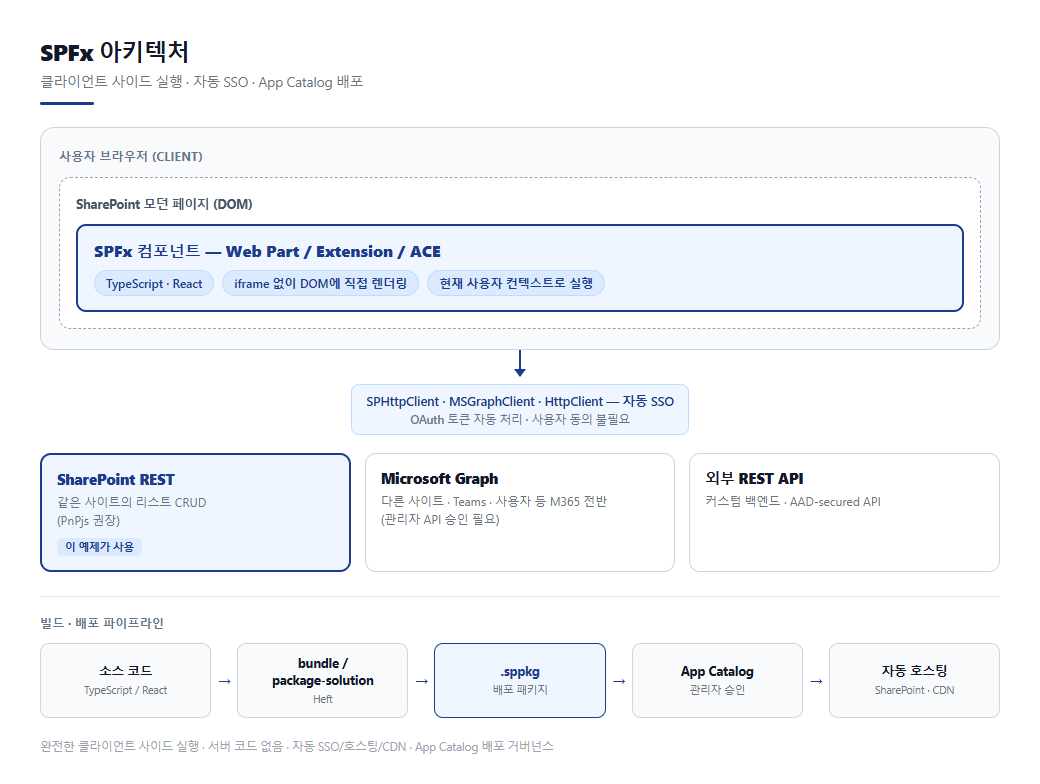
Key architecture points
- Fully client-side execution: No server code. The component JavaScript is embedded directly into the page and runs in the browser.
- Context & authentication: The framework-provided
HttpClient/SPHttpClient/MSGraphClientV3automatically handles authentication for calls → automatic SSO. - Automatic hosting & CDN: Built assets are automatically hosted in SharePoint (or the Office 365 CDN), so there is no separate web server cost.
- Packaging and deployment pipeline: Source →
bundle/package-solution→ .sppkg → upload to App Catalog → admin approval → site deployment.
How can it read lists without a server? A web part runs while carrying the identity of the already signed-in user (OAuth token). That is why it can call SharePoint/Graph directly with that user’s permissions without a separate authentication server.
4. Data calls — Graph is not “required”
How you bring in data depends on where the data lives. Microsoft Graph is not the default.
| Data location | Method to use | Admin API approval |
|---|---|---|
| Lists in the same site | SharePoint REST (SPHttpClient or PnPjs) |
Not required |
| M365-wide data such as other sites, Teams, users, and mail | Microsoft Graph (MSGraphClient) |
Required |
| External systems/custom backends | HttpClient / AAD-secured API |
Depends |
For lists in the same site, a single PnPjs block is enough:
const sp = spfi().using(SPFx(context));
const items = await sp.web.lists.getByTitle("Project Status").items
  .select("Title", "Owner", "PStatus", "Progress").top(500)();
Bottom line: Lists inside the site → SharePoint REST (PnPjs), M365 data outside the site → Graph.
5. Licensing and costs (developer perspective)
- SPFx itself and the development tools (Node/npm/Yeoman/VS Code/Heft) are all free.
- However, SharePoint Online (an M365 subscription) is a prerequisite. (For development/testing, an M365 Developer Program tenant is free.)
- If you add an external Azure backend, paid API, or premium license, only those added resources are billed separately.
“SPFx = free, SharePoint/M365 subscription = required, resources added externally = billed separately only for those resources.”
References
- SharePoint Framework overview
- Set up your development environment
- PnPjs library
- Next article → Hands-on: list → dashboard app → embed in a page