Redlining Documents with the New Copilot Studio Experience
A look at how a redlining Skill that compares documents using Microsoft Word Track Changes was implemented on the new Copilot Studio orchestrator.
Translated article — This article is based on Redlining Documents with the New Copilot Studio Experience by AndrewHessMSFT and raemone (@AndrewHessMSFTraemone) on The Custom Engine (2026-07-15). The original wording takes precedence.
Get the Skill: Download and install redlining-content from the CAT Agent Skills gallery.
“What changed?” A vendor emails you a contract with edits buried somewhere inside, and you want to see every difference clearly marked up with Track Changes that you can Accept or Reject. Sounds easy, right? By hand, it can take hours, and even the first automation attempt was painfully slow. Eventually, it got a 100-page document down to seconds.
First, let’s look at how Track Changes actually works. A Word .docx file is really just a zip file full of XML, with text wrapped in tags that describe it. When you turn on Track Changes and edit, Word does not simply change the text; it wraps the edits in special XML tags. Added content is wrapped in w:ins, and deleted content is wrapped in w:del (deleted words are kept and displayed with strikethrough). Each tag also records who made the change and when.
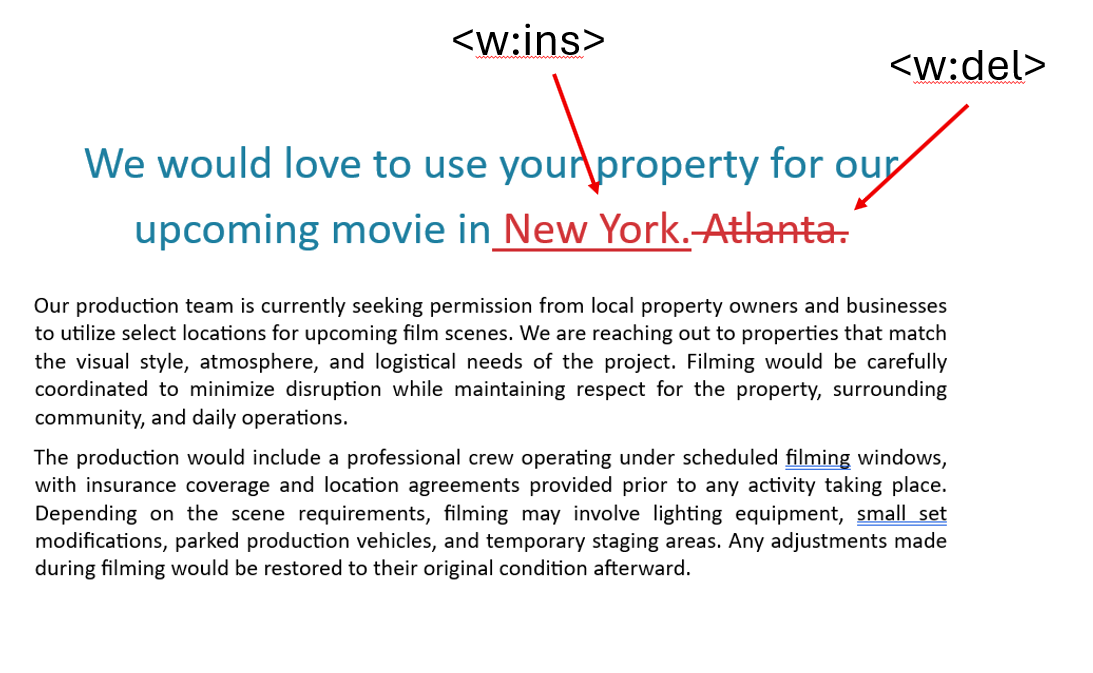
That is all a “tracked change” is: text tagged with OOXML markup that Word knows how to display as a change and lets you Accept or Reject.
Simple to describe, brutal to build. The output has to be a .docx where each edit lands as genuine OOXML markup, with insertions as w:ins and deletions as w:del, while the original’s exact formatting survives so it opens cleanly in Microsoft Word. A centered title stays centered. A 14pt heading stays 14pt. A table stays a table. Get fidelity wrong, and the “redline” is just a degraded copy of the document.
This is the story of building the redlining-content Skill for the new Copilot Studio orchestrator. The first working version took 15 minutes per document. The final version takes 15 seconds. Here is how the agentic loop closed that gap.
How the loop wrote its own Python reference script
We needed a process that could compare a .docx or .dotx file against either a .docx or .pdf file. We used Python for that.
The most important thing we built was not the Python itself. It was the process that discovered the Python. We never sat down to write a redline engine from a blank file. We let the agentic loop do it, then codified what survived.
It went through four distinct phases, and each phase taught the next.
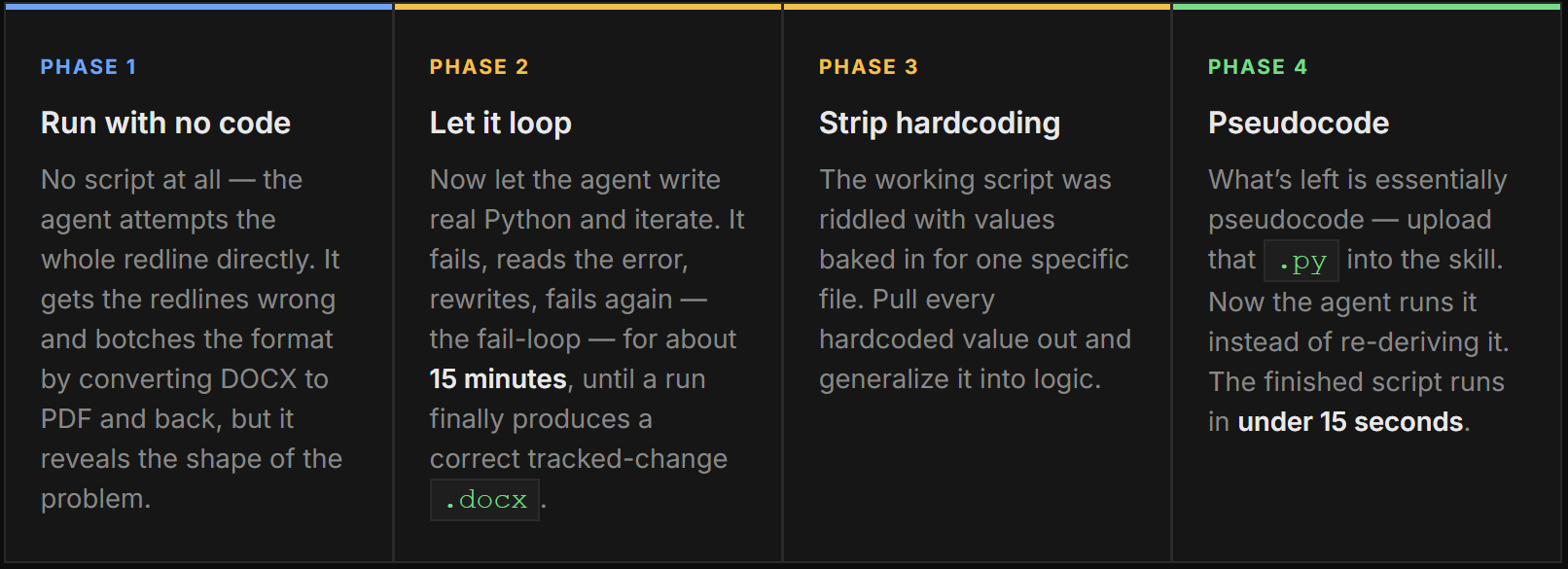
Phase 1: Run with no code
The best first move was to start with no code.
The agent tried to produce the redline directly, reasoning over the two files without a script to lean on. It got the redlines wrong. The worst failure was that it tried to bridge the two file formats by converting to PDF. In other words, both the DOCX template and the uploaded PDF went through format conversion. Going from DOCX to PDF and back destroyed the formatting entirely. The layout shifted, spacing changed, and when Track Changes ran on top of that mangled result, it “redlined” paragraph breaks and spacing differences that no human ever made. The output was full of noise and impossible for a reviewer to trust. It was not what we wanted, but it showed exactly what to avoid: never convert between formats.
We already have the initial template as DOCX or DOTX. Just use that template and update it with the changes!
Phase 2: Let it loop
Once we knew conversion was harmful, we turned the agent loose to write Python that redlines directly and let it loop. This is where the agentic loop earns its name. The agent writes a script, runs it, hits an error, reads the traceback, rewrites, and runs again, over and over, with no intervention from us. Each failure was a teacher. It looped through crashes from lxml, malformed XML, incorrect element nesting, and revision ID collisions. The whole fail/rewrite cycle took about 15 minutes. Then one run finally emitted a .docx that opened cleanly, with real tracked changes and a redline that was actually correct.
The failures are not waste; they are the iteration. Every traceback the loop reads narrows the space of correct code. Our job was not to write the engine, but to give the loop a clear target and let it converge on the implementation through trial and error.
Phase 3: Strip the hardcoding
Finally, the agent output a correct redlined document. But it was full of hardcoded values: specific paragraph indexes, literal strings, fixed IDs, and hardcoded file paths. The uploaded file name and template file name were baked directly into the script. So we gave the agent one more instruction: strip out every hardcoded value and generalize. The specific paragraph index became “the paragraph this word maps back to,” and the literal replacement string became a diff between the template and the submission.
Phase 4: Pseudocode
What came out of stripping the constants was essentially light pseudocode with no hardcoded values. It was not actual code tied to a specific file, but a reusable head start for the agent when it is trying to figure out what to write. That went into the Skill as scripts/redline.py. This is the core trick. Before, the agent had to rediscover the solution through that fail/rewrite loop on every request. Afterward, the agent only had to run the codified script. The expensive part — the agentic experimental loop trying to write the correct code — is handled up front as real guidance in the pseudocode.

Same output, roughly 60x faster. Codifying the loop’s discovery into a script turned a 15-minute reasoning marathon into a 15-second function call.
The wall: no pip install
Every interesting constraint in this project traces back to one fact: the new Copilot Studio runtime does not allow Python package installation. What ships in the container is what you get. pdf2docx might have been useful, but it was not available. It is not there, and there is no pip install.
Here are all the PDF-to-DOCX approaches tried before shipping, and where each one landed.
| Approach | Formatting | Tables | Alignment | Verdict |
|---|---|---|---|---|
| Extract text → rebuild document | Lost | Flat text | Lost | Fail |
pdf2docx |
N/A | N/A | N/A | Not available |
pymupdf |
N/A | N/A | N/A | Not available |
python-docx (build output) |
Good | OK | Style reset | Too abstracted |
pypdfium2 + rebuild |
Exact | Real tables | Exact | Image only |
Template + word diff (pdfplumber reads PDFs, no conversion) |
Byte-perfect | Cell-level | Native | Shipped |
The approaches tried for turning a PDF into a redline. Converting to DOCX either failed or was not available; reading the PDF text with pdfplumber and diffing against the template was the approach that worked.
During iteration, multiple Python packages were tried to convert PDF to DOCX. But the obvious answer was there all along: pdfplumber was available, and it can read PDF text directly. So keep it simple. Do not convert the initial template at all. Keep it as DOTX or DOCX, use pdfplumber to pull the submission’s words, and update the template with redlining changes.
The Skills currently available in Copilot Studio may change in the future.
We kept trying to convert a PDF into a Word document. At first that looked like the problem, until we realized no conversion was needed at all. What is available is pdfplumber, a layout-aware text extractor (the same building block behind page-level PDF citations), and that was exactly what we needed. The Skill converts nothing. It uses pdfplumber to read the submission’s words, then builds the redline directly on the Word template you already have.
After the breakthrough
That reframing became the Skill that ships today. The output is the actual initial template itself, with revisions injected directly as w:ins / w:del elements. No conversions, no headaches, and no inherited styles that could trigger unnecessary redlining.
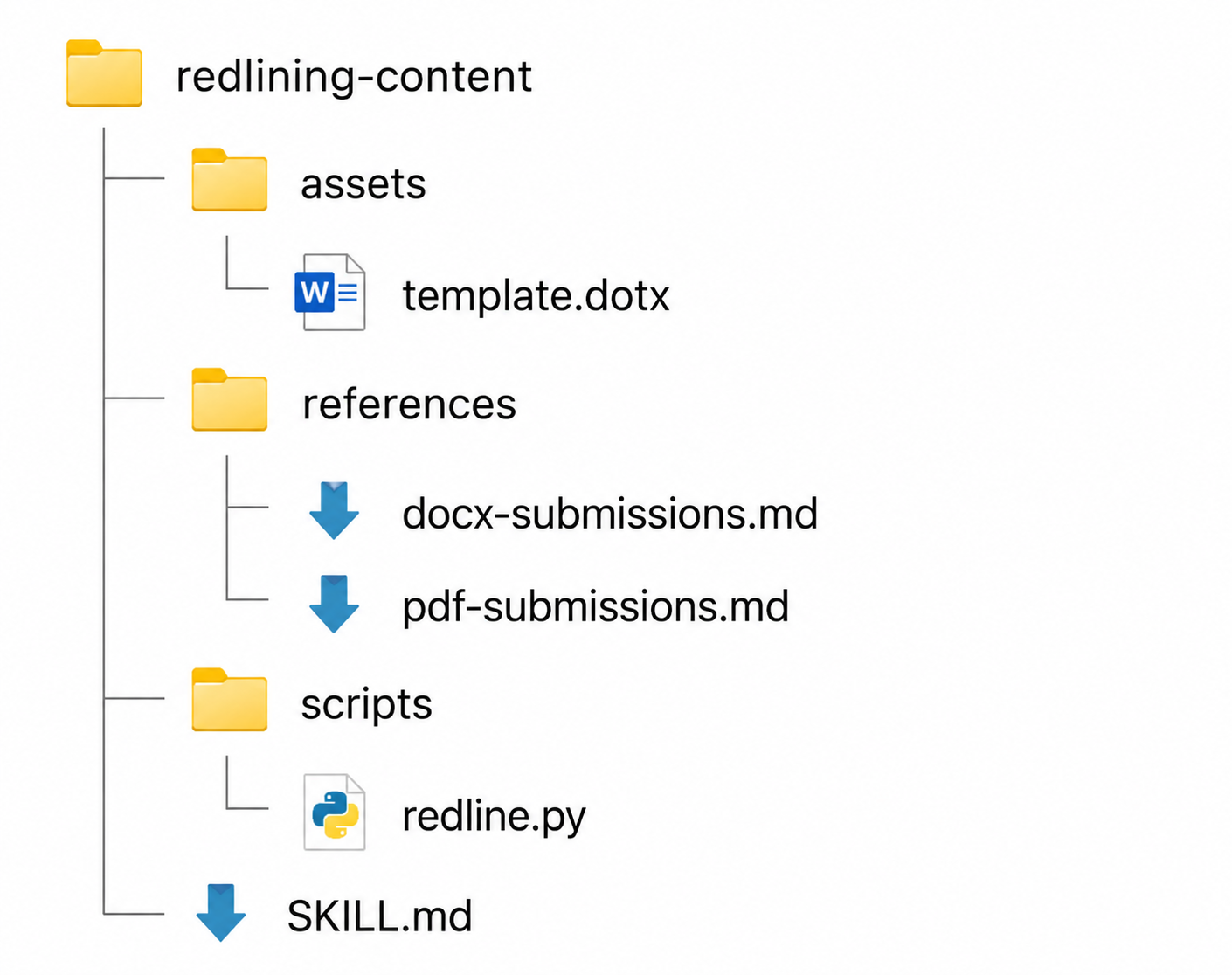
The final file structure is as follows.
- Assets folder —
template.dotx - References folder —
docx-submissions.md,pdf-submissions.md - Scripts folder —
redline.py - SKILL.MD — Instructions that tie everything together
Here is what the Skill actually does at runtime.
- It uses two files: the template (DOTX or DOCX) bundled in the Skill Assets folder as the baseline, and the submission (DOCX or PDF) uploaded by the user.
- It reads words from each file. Word files are read as straightforward paragraph text, while PDFs use
pdfplumbertext extraction (never converting the PDF to Word). - It directs the agent to read one of the included references, either
docx-submissions.mdorpdf-submissions.md, depending on the submitted document type. - It compares the two files once as two flat word lists using
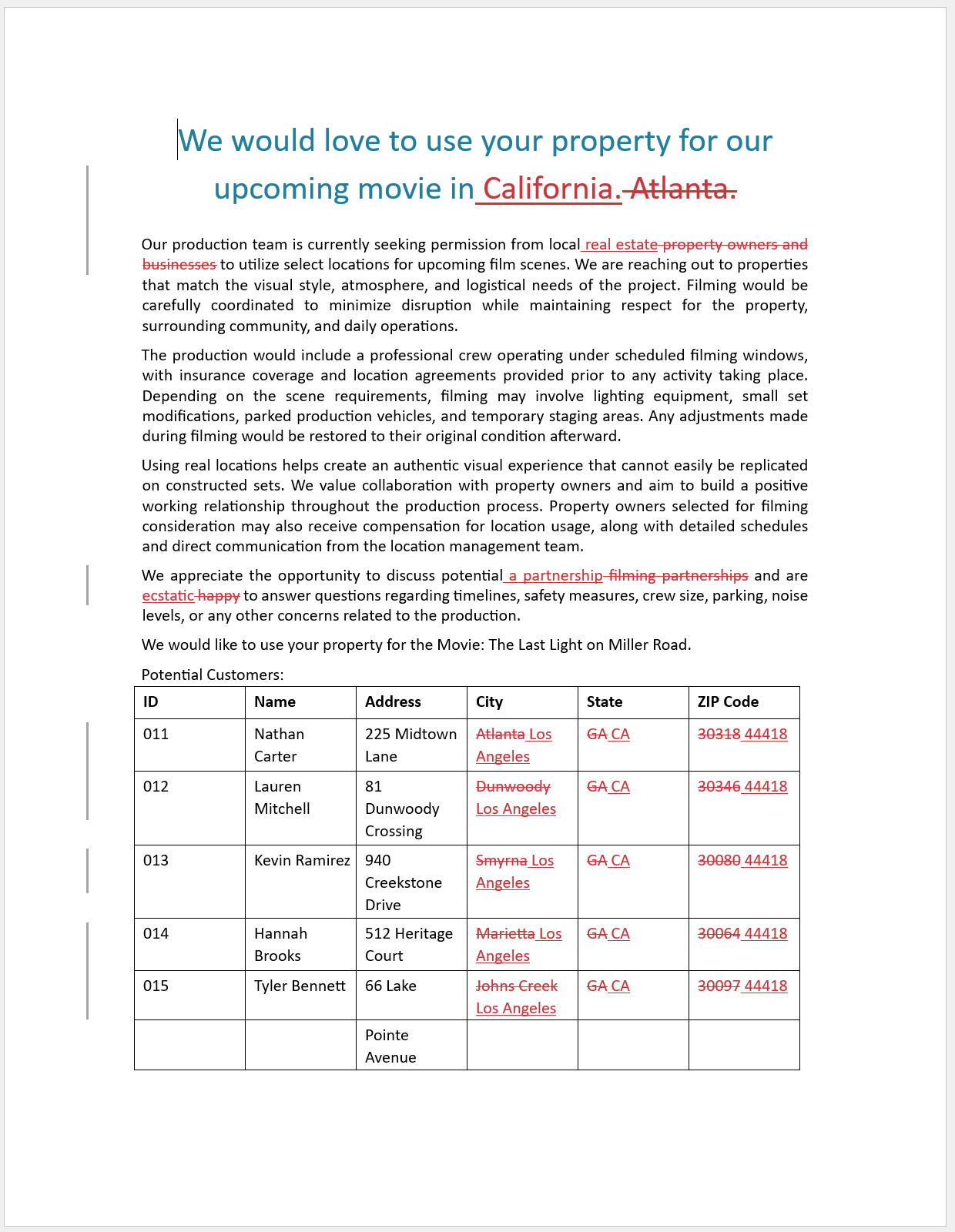
difflib.SequenceMatcher, so line wraps and page breaks do not create false differences. Only real word changes count. - It keeps unchanged paragraphs byte-for-byte (preserving all original formatting) and rebuilds only the paragraphs that actually changed.
- It marks every difference as a Word tracked change. Insertions are wrapped in
<w:ins>, and deletions are wrapped in<w:del>. - Every change is authored by “Copilot Studio AI”.
- For tables in DOCX submissions, it compares cell by cell while preserving each cell’s width, borders, and shading. PDF tables pass through unchanged.
- It outputs a normal DOCX with Track Changes turned on. All changes and deletions are marked.
Treat a PDF redline as a best-effort draft for review. If you need character-perfect comparison, a
.docxsubmission is the high-fidelity path because it carries real structure.
Is this for Copilot Studio or Cowork?
At a high level, it depends on whether a business process wraps the task. If the entire job is just “compare these two documents and redline them,” with no larger workflow, Cowork may be the better fit. Point it at the files and let it work.
But the moment you operate in the context of specific documents and a specific process, Copilot Studio pulls ahead. Think of a fixed template you always redline against, or a need to intercept submissions received by email, route them, apply rules, and return a tracked-changes document every time. That is not a one-off task; it is a repeatable pipeline, and that is exactly where an authored MCS Skill shines.
So this is intentionally Copilot Studio. During development, the agentic loop did Cowork-style discovery once, and then that discovery was frozen into a deterministic Skill that runs the same way on every request. That said, nothing prevents you from taking the same approach in Cowork. Use whichever method fits your business needs.
Key takeaways
-
Let the loop write the correct code. Run without code first, then let the agent fail-loop its way to a working script. The failures are central to this iterative approach.
-
Then de-hardcode and codify. A working script is hardcoded to one input. Turn every literal into logic, then upload the generalized pseudocode into the Skill so the agent executes instead of rediscovers. That is how you turn 15 minutes into 15 seconds.
-
Use native Accept/Reject. Every change is redlined by “Copilot Studio AI” and can be accepted or rejected.
-
Do not convert what is already perfect. The template is a perfect Word document. Injecting revisions is not always necessary, and it beats reconstructing the document every time.
Have you tried letting an agentic loop write your script instead of writing it yourself? Share how it went in the comments.